Working Groups — community moderation
https://pirt.demo.weebpal.com/manage/groups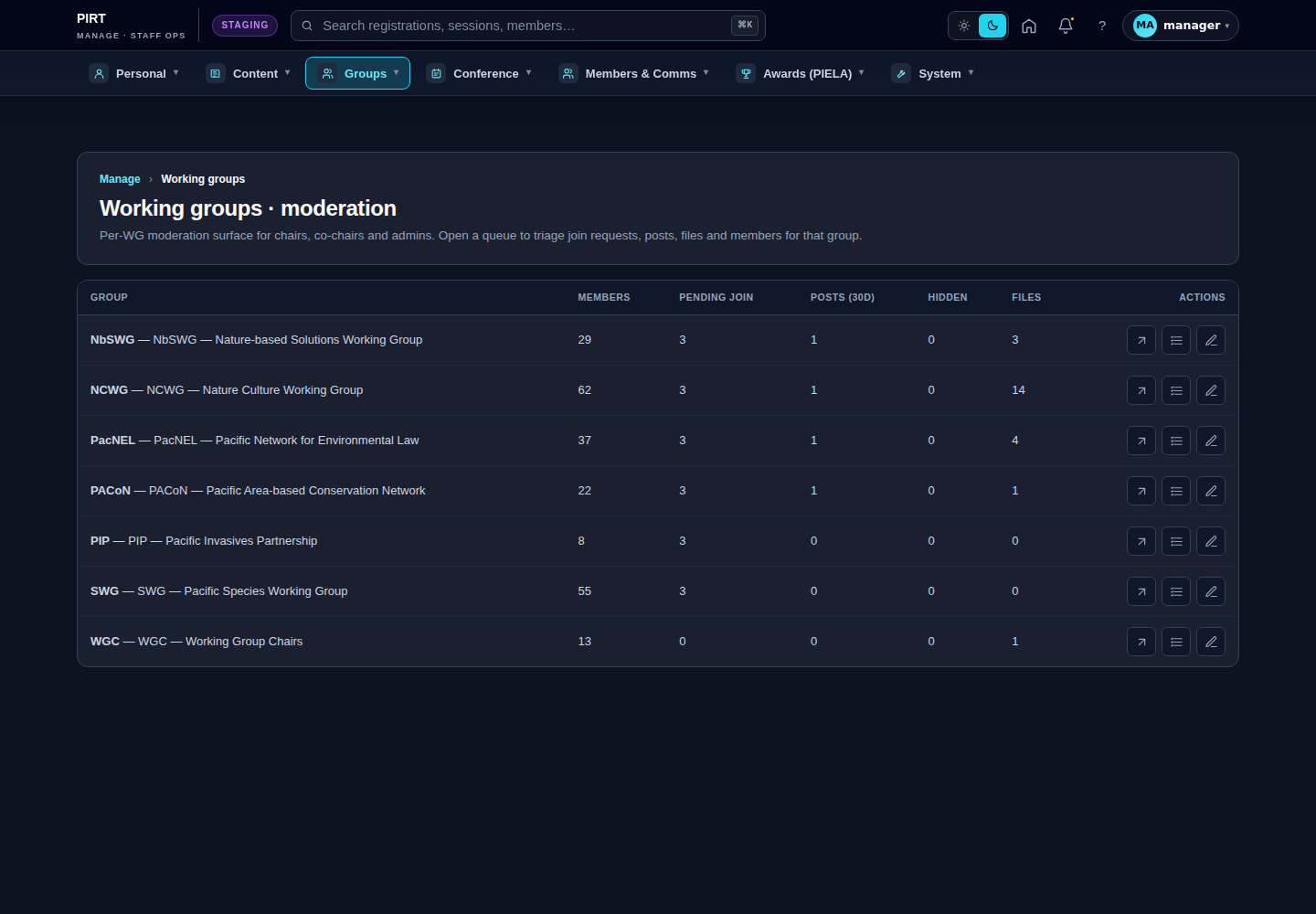
https://pirt.demo.weebpal.com/manage/groups.What this manages
The Working groups · moderation screen at https://pirt.demo.weebpal.com/manage/groups is the staff hub for the site's private working-group communities — the members-only spaces where each working group's people discuss, share files and upload media away from the public site.
Every working group has two halves. The public Working Group node (created and edited in the Working Groups — creating & editing chapter) is the outward-facing profile: the card on the working-groups listing, the hero, the public "about" copy and the Join gate at https://pirt.demo.weebpal.com/working-groups/{slug}/join. Behind it sits a companion community — the private members' area at https://pirt.demo.weebpal.com/working-groups/{slug}/… with its discussion, files and member roster. This moderation hub is where you triage and tidy that private side: approve who gets in, keep discussion clean, and curate the shared documents.
You do not create the companion community by hand. When a Working Group node is published, the system pairs it with its private group; managers and the group's own chairs then run it from here. The public node controls what visitors see; this screen controls who is inside and what they may post.
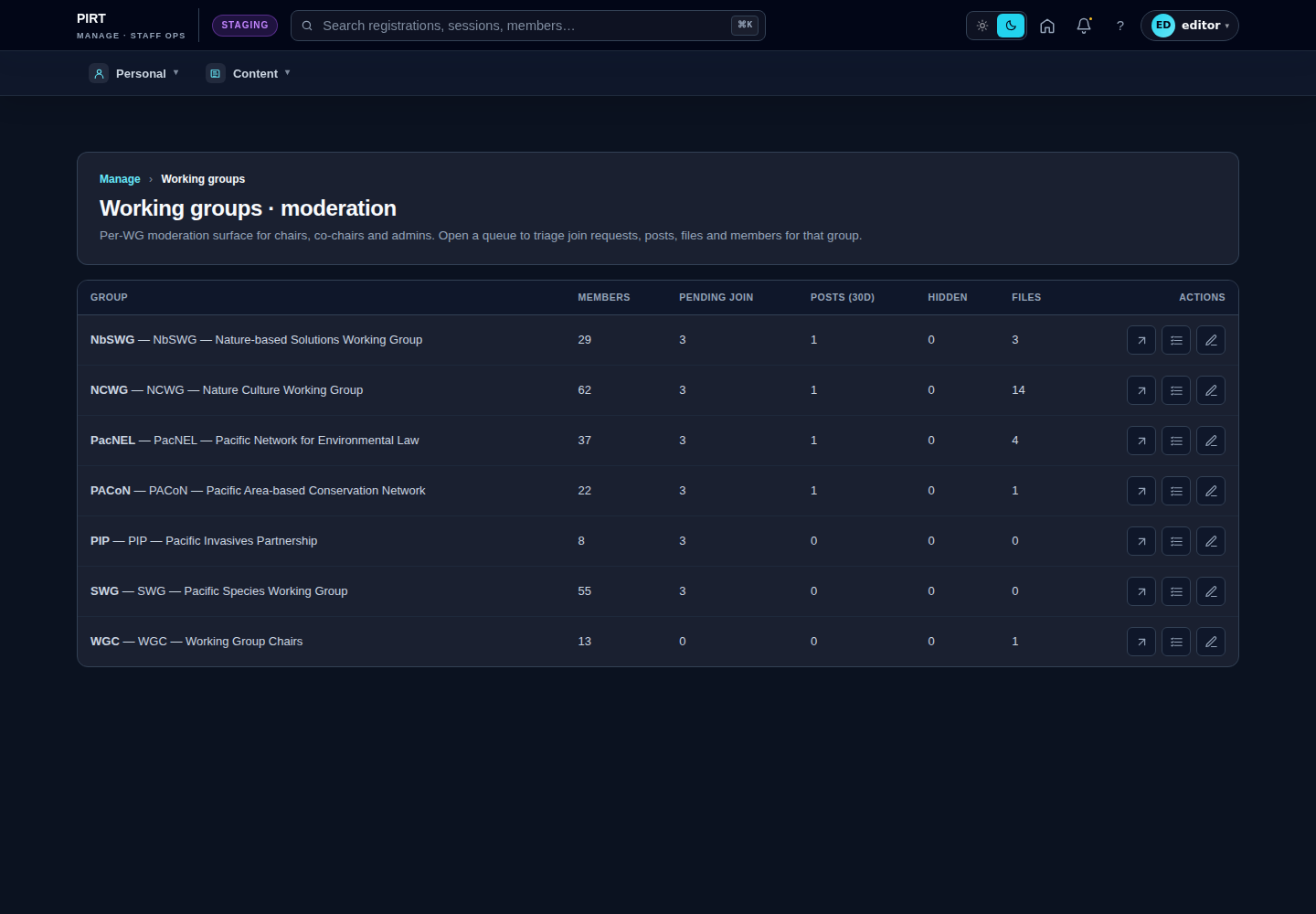
The index is open to Editors and Managers for triage, but the per-group Settings tab requires the Manager role — an Editor who opens a group's settings receives an HTTP 403 (access denied). A working group's own chairs and co-chairs can also moderate their own group, even without a site-wide staff role.
Standard workflow
A. Pick a working group
- Open
https://pirt.demo.weebpal.com/manage/groups(under Groups in the top navigation). - The table lists every working group — e.g. NbSWG — Nature-based Solutions Working Group, NCWG — Nature Culture Working Group, PacNEL, PACoN, PIP, SWG, WGC — with live counts so you can spot which one needs attention.
- The columns are Members, Pending join, Posts (30d), Hidden (posts taken down) and Files.
- In the Actions column, use the list icon to open that group's moderation queue, or the external-link icon to view its public profile.
B. Triage join requests — Queue / Requests
A working group is gated: a signed-in member applies through the public Join page, and the request lands here for review. Open a group's Queue (https://pirt.demo.weebpal.com/manage/groups/{slug}/queue) or the Requests tab (https://pirt.demo.weebpal.com/manage/groups/{slug}/requests) to see the pending applications, with each requester's organisation, stated expertise, current status and submitted date.
Each request moves through a lifecycle: submitted → triaged → under review → approved / rejected / withdrawn. The queue shows the requests that are still open (submitted, triaged or under review); withdrawn requests drop out of the pending list automatically.
- Read the requester's details — name, email, organisation and the expertise they describe.
- Click the tick (✓) to approve. This creates their group membership immediately and notifies them by email — there is no separate "add member" step.
- Click the cross (✕) to reject. This closes the request and emails the applicant; a recently rejected person cannot immediately re-apply (a short cool-down applies).
C. Moderate discussion — Posts
- Open the Posts tab (
https://pirt.demo.weebpal.com/manage/groups/{slug}/posts) to see the group's discussion posts with their Author, Status (Published or Hidden), Pinned flag and last Updated date. - Pin a post to hold it at the top of the group's discussion feed, or hide (unpublish) a post that breaches the group's norms.
- Moderation actions sit beside each post in the private discussion feed as well, so chairs can act in context; this tab is the staff overview.
D. Manage the roster — Members
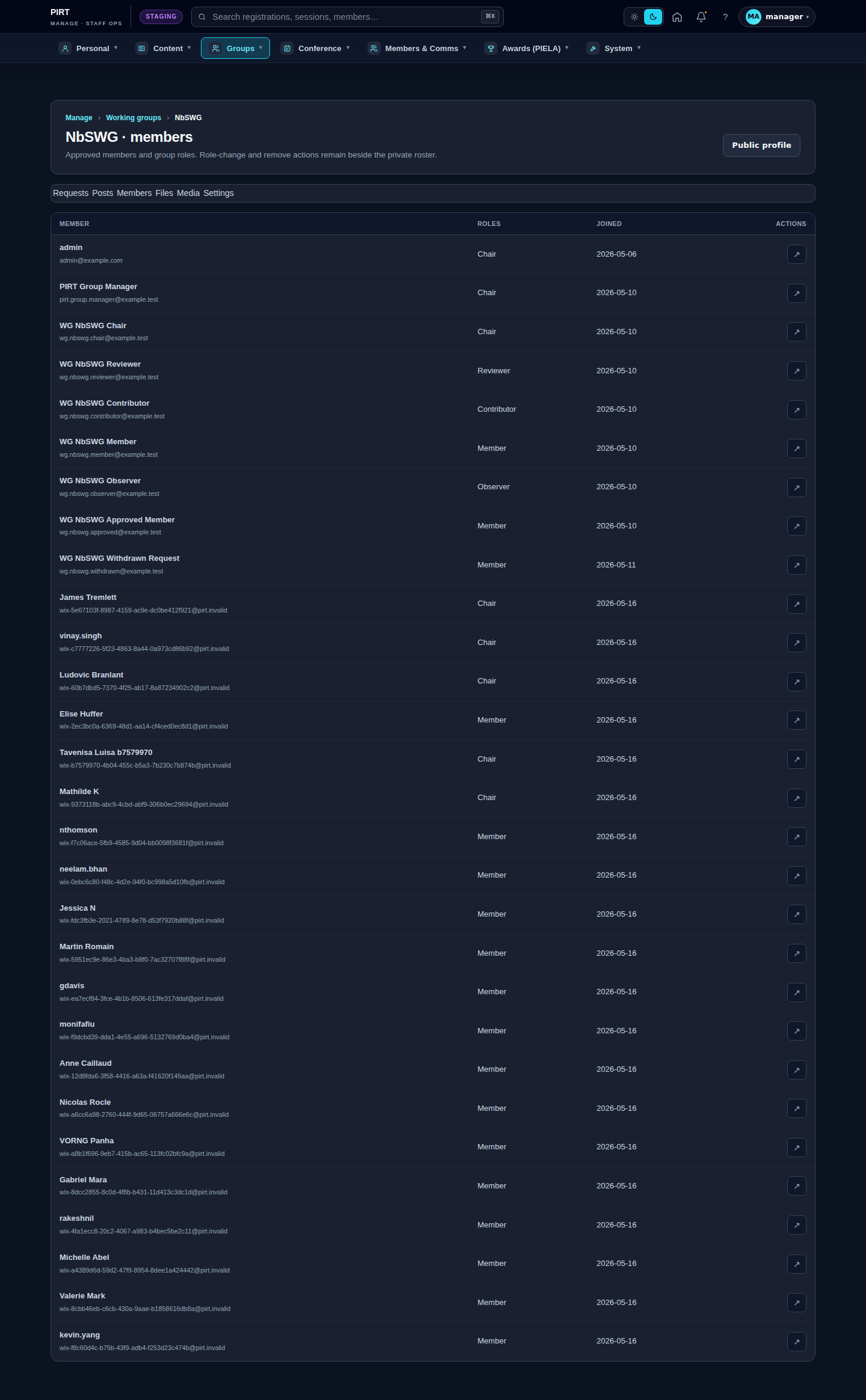
- Open the Members tab (
https://pirt.demo.weebpal.com/manage/groups/{slug}/members) for the approved roster, each member's roles and the date they joined. - Use the per-member action to make or remove a Chair, or to remove a member from the group. (You cannot change your own role from here.)
- Removing a member revokes their access to the private community; if they were admitted in error they can be re-admitted via a fresh join request later.
E. Curate uploads — Files & Media
- The Files tab (
https://pirt.demo.weebpal.com/manage/groups/{slug}/files) lists the group's private documents with a workflow state — draft, final or escalated — and the upload date. - The Media tab (
https://pirt.demo.weebpal.com/manage/groups/{slug}/media) lists images and remote video (its Type column shows image or remote_video). - Review uploads, change a file's state as it progresses, and remove anything posted in error.
F. Per-group Settings (Manager / chair)
The Settings tab (https://pirt.demo.weebpal.com/manage/groups/{slug}/settings) holds the group's own banner and guidance copy. Here you set the Group title, acronym / breadcrumb label, card tagline and hero subtitle, upload a banner image (with alternative text), and write the public about copy, a short public about summary and the private community guidance shown to members inside the group. Click Save group settings to apply. This tab is restricted to Managers and the group's chairs.
Per-group sections
| Tab | URL | What you do there |
|---|---|---|
Queue / Requests |
https://pirt.demo.weebpal.com/manage/groups/{slug}/queue · https://pirt.demo.weebpal.com/manage/groups/{slug}/requests |
Approve or reject join requests; approve grants membership at once. |
Posts |
https://pirt.demo.weebpal.com/manage/groups/{slug}/posts |
Pin, publish or hide discussion posts. |
Members |
https://pirt.demo.weebpal.com/manage/groups/{slug}/members |
View the roster and roles; make/remove a Chair; remove members. |
Files |
https://pirt.demo.weebpal.com/manage/groups/{slug}/files |
Review documents; set draft / final / escalated state; remove. |
Media |
https://pirt.demo.weebpal.com/manage/groups/{slug}/media |
Review images and remote video; remove uploads. |
Settings |
https://pirt.demo.weebpal.com/manage/groups/{slug}/settings |
Banner, profile and guidance copy (Manager / chair only). |
Member roles
| Role | What it means in the community |
|---|---|
Chair |
Leads the group and moderates it; can run these same queues for their own group. |
Reviewer |
Helps the chair triage and review group content. |
Contributor |
Posts discussion and uploads files and media. |
Member |
Full standing member of the working group. |
Observer |
Read-only access to the private community. |
Tips
- Public node vs private community. Edit the public card, hero and listing in the Working Groups chapter; edit who is inside and what they post here. The two are linked but managed in different places.
- Approve is immediate. Ticking a join request adds the person to the group straight away and emails them — there is no draft state, so be sure before you approve.
- Hide rather than delete a problem post when you may need it later; hiding (unpublishing) removes it from the feed without losing the record.
- Watch the counts. The Pending join and Hidden columns on the index tell you at a glance which groups need a moment's attention.
- Chairs can self-serve. You can delegate day-to-day moderation by making a trusted member a Chair; they then see the same queues for their own group.
- Settings is Manager-only. If an Editor needs to change a group's banner or guidance copy, a Manager (or the group chair) must do it — the Settings tab is locked to those roles.
- File state is meaningful. Keep documents on the right draft / final / escalated state so members can tell which version is authoritative.
Editor vs Manager view
The same screen as each role sees it. Click a row to expand.
Editor
Manager