Working Groups — creating & editing
https://pirt.demo.weebpal.com/manage/content/working-groups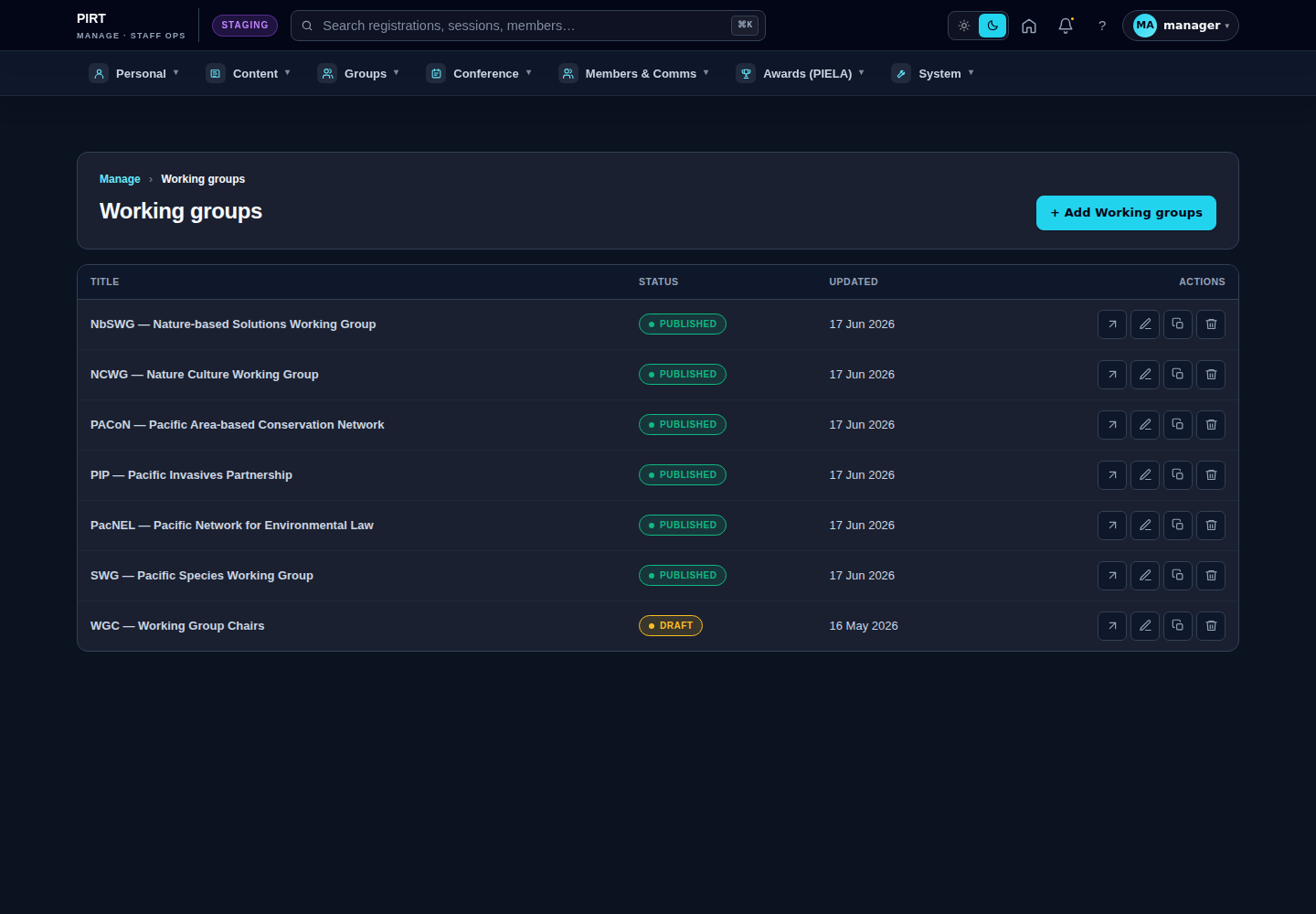
https://pirt.demo.weebpal.com/manage/content/working-groups.What this manages
Working groups are the standing partnerships of the Roundtable — for example the Nature-based Solutions Working Group (NbSWG) or the Pacific Invasives Partnership (PIP). Each working group has two sides:
- A public page at
https://pirt.demo.weebpal.com/working-groups/{slug}— its introduction, chair and secretariat, focus areas, cadence and upcoming events. This is what anyone can read on the live site. - A member community — the discussion, files, media and member directory that only approved members of that group can see.
This chapter covers the public page: how to create a working group and how to edit every field on it. Each working-group node has a companion member community attached to it, but moderating that community — approving join requests, removing posts, managing files — is a separate job covered in Working Groups — community moderation.
Creating, editing and deleting working groups is Manager-only. A chair, co-chair or secretariat listed on a group may also edit that one group's page, but only Managers can add new groups or delete them.
All of the work below happens in the manage workspace under Content → Working groups, at https://pirt.demo.weebpal.com/manage/content/working-groups.
Create a working group
The list page shows every working group with its publication status and last-updated date. From here you create new groups and open existing ones to edit.
https://pirt.demo.weebpal.com/manage/content/working-groups) — each row shows the title, status and last-updated date, with open, edit, duplicate and delete actions on the right.- Open Content → Working groups (
https://pirt.demo.weebpal.com/manage/content/working-groups). - Click + Add Working groups at the top right. The create form opens.
- Enter the Title (the full group name, e.g. "Nature-based Solutions Working Group") and the Acronym (e.g. "NbSWG"). Both are required.
- Write the Body — the group's purpose, objectives and how it operates. This is required and forms the main text of the public page.
- Set the Status (Active, Dormant or Archived) — this is the group's operational status, not its publication state.
- Fill in as many of the optional fields as you have to hand — tagline, header image, chair, secretariat, cadence, focus areas and so on. You can always come back and add these later. See the Fields table below for what each one controls.
- Choose the publication state in the Status panel on the right: leave it as Draft while you are still working, or set it to Published when the page is ready for the public.
- Click Save. Use Preview first if you want to check how the page will look before publishing.
A new working-group node automatically gets its companion member community, so once the page exists the group is ready to start accepting members.
Edit a working group
Editing uses the same form as creating — every field can be changed at any time, and your changes go live as soon as you save a published group.
- Open Content → Working groups (
https://pirt.demo.weebpal.com/manage/content/working-groups). - Find the group in the list and click the pencil (edit) icon on its row. The edit form opens at
https://pirt.demo.weebpal.com/manage/content/working-groups/{id}/edit. - Change any field. To rename the group, edit the Title (and Acronym if it has changed). To rewrite the introduction, edit the Body. To change the lead people, update Chair, Co-chairs, Secretariat (person) or Secretariat (organisation).
- To change the banner, use the Header image field — remove the current file and upload a new one (PNG, GIF, JPG or WebP, one file only).
- To update the meeting rhythm, edit the Cadence field (e.g. "Quarterly" or "Monthly second Friday 10:00 FJT").
- To change the topics, edit Focus areas — use Add another item for more rows, or Remove to drop one.
- To edit the hero pills or the "At a glance" card, expand those paragraph sections and edit each Fact item (a short label plus a value). Use Add Fact item to add a row.
- Adjust the publication state in the right-hand Status panel if needed, then click Save.
The form is grouped to match the public page: identity fields (Title, Acronym, Tagline, Header image) are at the top, then the long-form text (Summary, Body, Lede), then the status and meeting details, then the people, and finally the focus areas and aside-card content.
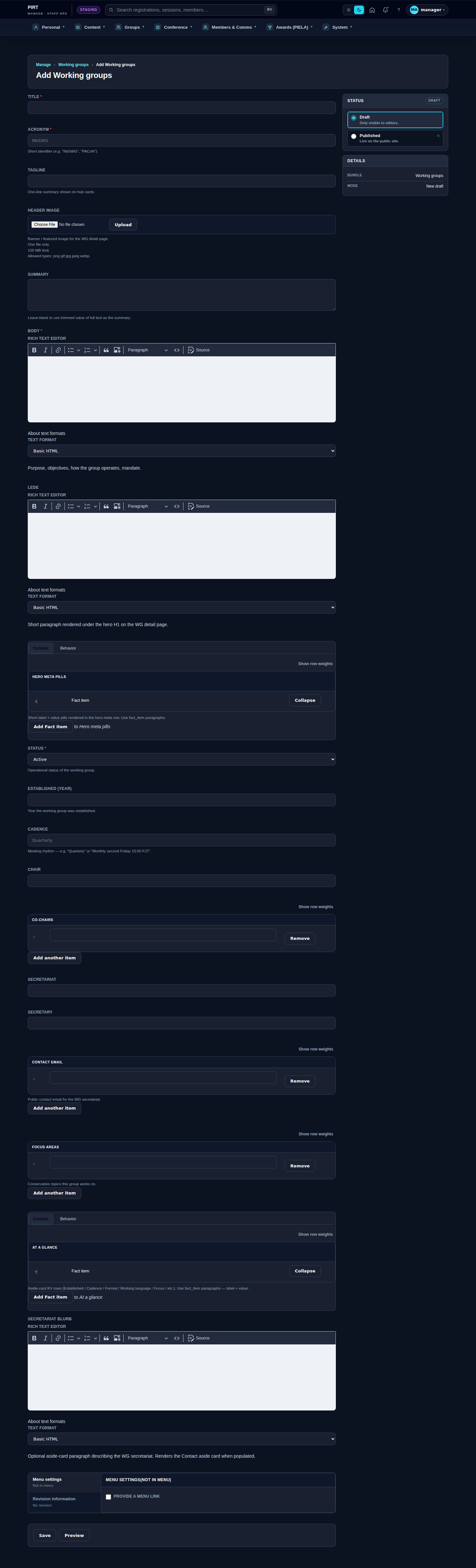
Fields
Every field on the working-group form, what it controls, and whether it is required. Helper text under each field on the form repeats the short descriptions below.
| Field | What it controls | Required? |
|---|---|---|
| Title | The full working-group name. Used as the page heading and in the hub listing. | Yes |
| Acronym | Short identifier (e.g. "NbSWG", "PACoN") shown alongside the name. | Yes |
| Tagline | One-line summary shown on the hub cards. | No |
| Header image | Banner / featured image for the detail page. One file; PNG, GIF, JPG or WebP. | No |
| Summary | Optional trimmed teaser. Leave blank to use a trimmed version of the Body. | No |
| Body | The main text — purpose, objectives, how the group operates, its mandate. | Yes |
| Lede | Short paragraph rendered just under the page heading on the detail page. | No |
| Hero meta pills | Short label + value pills in the hero row (e.g. "Established · 2022", "Open membership"). Each pill is a Fact item. | No |
| Status | Operational status of the group: Active, Dormant or Archived. (Separate from publish state.) | Yes |
| Established (year) | The year the working group was established. | No |
| Cadence | Meeting rhythm, e.g. "Quarterly" or "Monthly second Friday 10:00 FJT". | No |
| Chair | The single chair (start typing a name to pick a user). Use Co-chairs for multi-chair groups. | No |
| Co-chairs | One or more co-chairs, for groups with multiple chairing organisations. | No |
| Secretariat (person) | The person coordinating the group's secretariat. | No |
| Secretariat (organisation) | Member organisation hosting the secretariat (e.g. SPC, SPREP). | No |
| Contact email | Public contact email for the secretariat. | No |
| Focus areas | The conservation topics this group works on (one or more). | No |
| At a glance | Aside-card key/value rows (Established, Cadence, Format, Working language, Focus, etc.). Each row is a Fact item. | No |
| Secretariat blurb | Optional aside-card paragraph about the secretariat. Renders the Contact aside card when filled in. | No |
Publish / unpublish
Publication is controlled by the Status panel on the right of the form, and is separate from the operational Status field (Active / Dormant / Archived).
- Draft — visible only to editors in the manage workspace. Use this while preparing a new group or making major changes.
- Published — live on the public site at
https://pirt.demo.weebpal.com/working-groups/{slug}.
To take a group offline, open its edit form, set the state back to Draft and save — the public page disappears immediately but the content is kept. To retire a group without removing it, set the operational Status to Dormant or Archived while leaving it published, so the page stays readable but is clearly marked as no longer active.
Tips
- Fill in Chair and Secretariat (person) wherever you can — those names also drive who is allowed to edit the group's page and help moderate its community.
- Use the duplicate action on the list page to spin up a new group from an existing one when several groups share the same structure, then rename and edit.
- Keep the Tagline short — it is what readers see on the hub cards before they click through.
- The Summary can be left blank; the system will trim the Body automatically for teasers.
- Use the Preview button before publishing a brand-new group to check the hero image, lede and "At a glance" card all render as expected.
- Setting operational Status to Archived is gentler than deleting — only delete a group if it was created in error, as deletion also removes its member community.
Editor vs Manager view
The same screen as each role sees it. Click a row to expand.
Editor
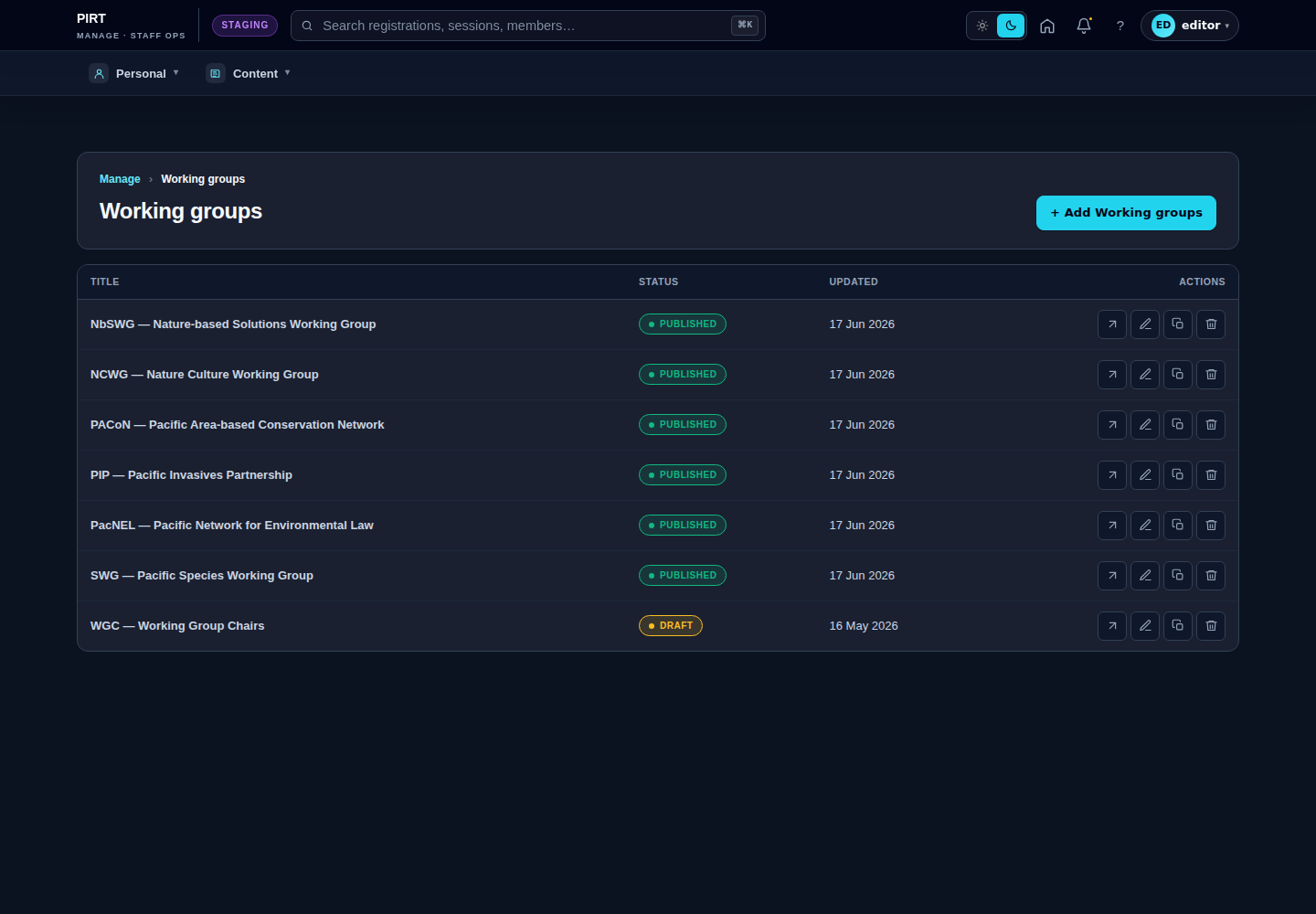
Manager