Managing reusable Blocks
https://pirt.demo.weebpal.com/manage/content/blocks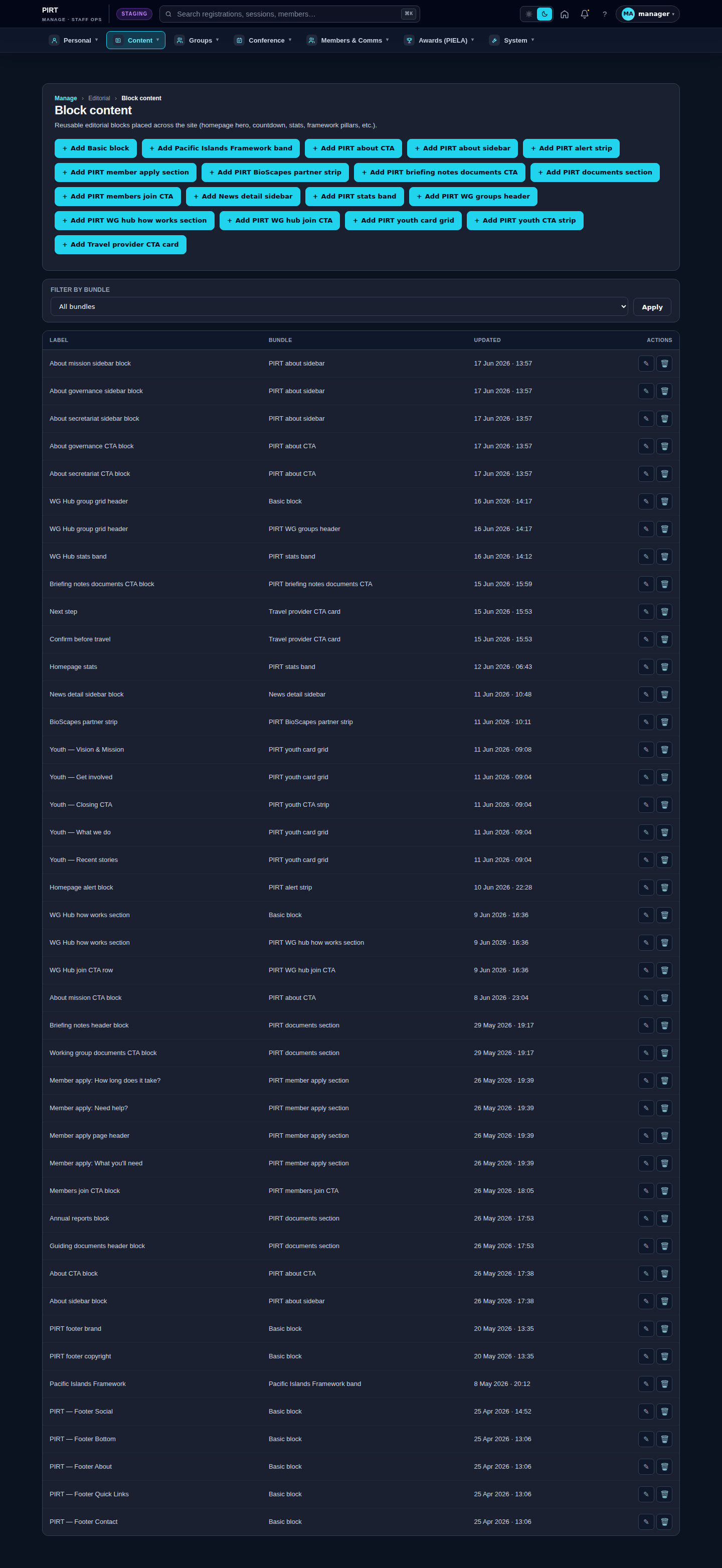
https://pirt.demo.weebpal.com/manage/content/blocks.What this manages
The Block content screen at https://pirt.demo.weebpal.com/manage/content/blocks holds the site's reusable content blocks — small, self-contained pieces of editorial content that are placed in fixed spots across many pages. Typical examples are the site alert / announcement banner, the statistics blocks, the homepage hero and countdown strips, the framework "pillars", and the About-page sidebars.
A block is "reusable" because the same block can appear in a region (a header, footer or sidebar slot) on lots of pages at once. Edit it here once and the change shows everywhere that block is placed — you do not retype it page by page.
The guiding principle is content lives in entities, not in code: the words, images and links you see in these banners and sidebars are stored as block content you can edit through this screen. The page template only decides where a block appears; what it says is yours to change here, with no developer needed.
This area requires the Manager role. Editors who open it receive an HTTP 403 (access denied); Administrators also have access.
Standard workflow
A. Find a block
- Open
https://pirt.demo.weebpal.com/manage/content/blocks(under Content → Editorial). - The list shows each block's Label (its internal name), its Bundle (the kind of block — e.g. PIRT alert, PIRT stats, PIRT about sidebar) and the date it was last Updated, newest first.
- Use the Filter by bundle drop-down and click Apply to narrow the list to one type, then use your browser's Find on page (
Ctrl+F/Cmd+F) to locate a label. - The labels are descriptive (for example News alert block or Homepage stats) so you can recognise the block by what it does.
B. Edit a block
- Click the block's Label — or the ✎ (edit) icon under Actions.
- Update the fields (these vary by bundle — an alert has a message, a stats block has numbers and captions, a sidebar has headings, text and links).
- The right-hand side panel shows the block's Status, its Bundle and when it was last updated, for reference.
- Click Save. The change appears on every page where the block is placed once the cache refreshes.
C. Add a block
- At the top of the list, click one of the + Add … buttons — there is one per bundle (e.g. + Add PIRT alert, + Add PIRT stats).
- Fill in the fields for that bundle and click Save.
- Note: creating a new block stores the content, but where it appears is set by its region placement. A freshly created block may not show anywhere until it is placed — coordinate with an Administrator if you are adding a brand-new block rather than editing an existing one.
D. Delete a block
- Click the 🗑 (delete) icon under Actions, then confirm.
- Take care: a reusable block may appear on several pages, so deleting it removes it everywhere at once. If you only want to take down a banner temporarily, clear or edit its content instead of deleting the block.
List columns
| Column | What it shows | Editor's note |
|---|---|---|
Label |
The block's internal name | Used to find and identify the block; click it to edit. |
Bundle |
The kind of block | E.g. PIRT alert, PIRT stats, PIRT about sidebar — also the Filter by bundle options. |
Updated |
Date and time last changed | Newest blocks appear at the top of the list. |
Actions |
Edit (✎) and Delete (🗑) | Edit opens the block's content form; Delete asks for confirmation. |
Tips
- Edit, don't recreate. To change a banner or sidebar that is already on the site, find the existing block and edit it — that updates every page at once. Adding a second block of the same type usually just creates a duplicate that goes nowhere.
- The site alert banner lives here. To post or clear a site-wide announcement, edit the PIRT alert block rather than touching any page.
- Use the bundle filter to cut a long list down fast — pick the type (e.g. stats, sidebar, alert) and click Apply.
- Keep stats current. Numbers in stats blocks are entered by hand here — review them before major events so the figures on the homepage stay accurate.
- Empty a banner instead of deleting it when an announcement ends; deleting the whole block is harder to undo and may break its placement.
- Mind the label. The Label is how you (and colleagues) recognise a block in this list — keep it clear, since the public never sees it.
- Don't look for this copy in page templates. If banner or sidebar text needs changing, it is here in Block content, never in the page's code.