Managing Member Organisations
Roles: Editor, ManagerURL:
https://pirt.demo.weebpal.com/manage/members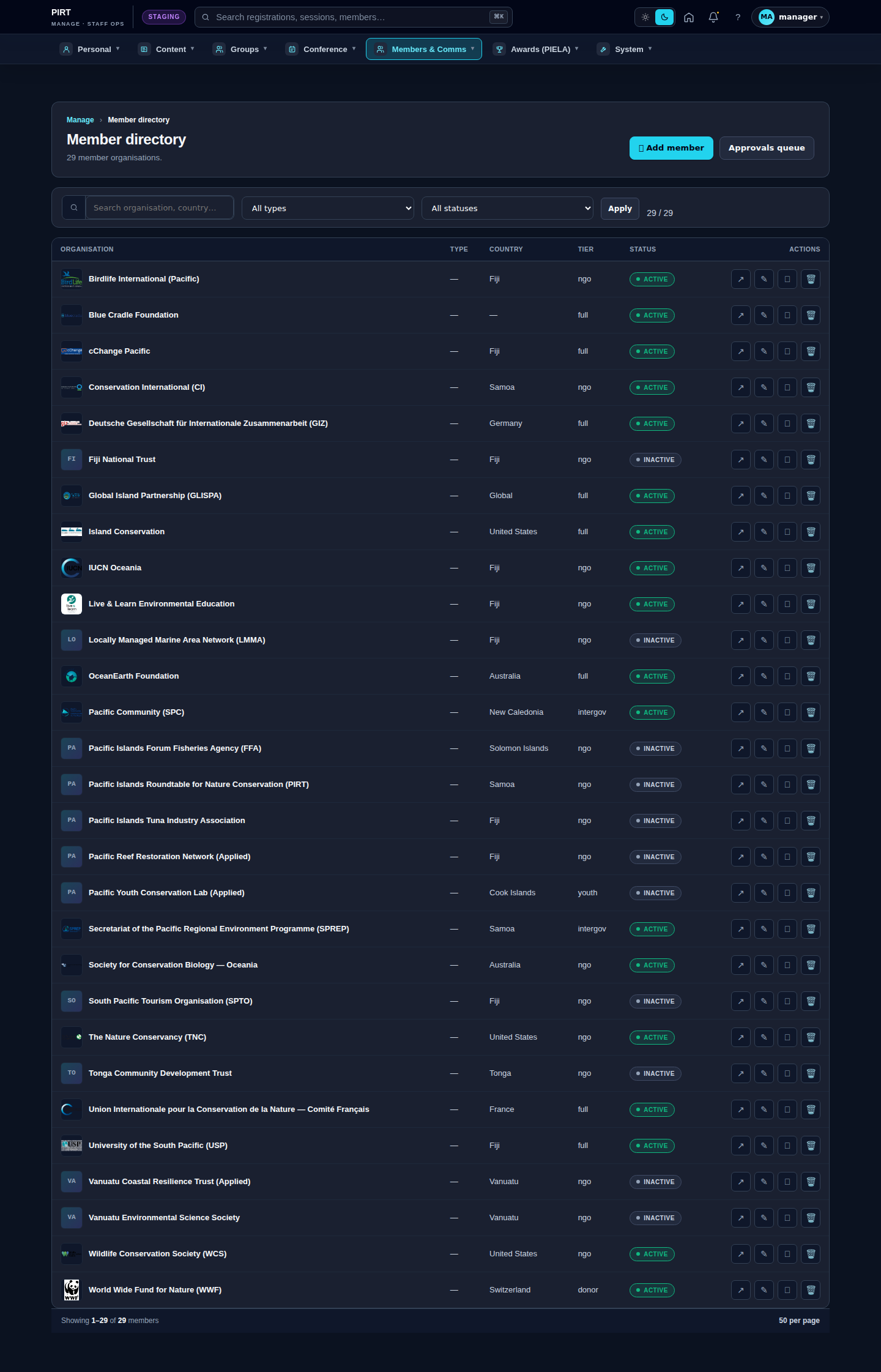
https://pirt.demo.weebpal.com/manage/members.Workflow
A Member Organisation is a node of content type member. Create / edit it the same way you do News or Pages — from the content list, filter by type Member.
Fields
| Field | Type | Required? | Translatable (FR)? | Editor's note |
|---|---|---|---|---|
uid (author) |
Reference (user) | Yes | No | |
status (published flag) |
Boolean | Yes | No | |
moderation_state |
List | Yes | No | |
title |
Text (255) — org name | Yes | Yes | Organisation full name (e.g. "Secretariat of the Pacific Regional Environment Programme"). |
field_member_logo |
Image | No | Yes | Logo (transparent PNG, square aspect). Alt text is translatable. |
field_member_type |
Entity reference (taxonomy: member_type) |
No | Yes | Taxonomy member_type — what kind of organisation (NGO, government, regional org, …). |
field_member_country |
Text (64) — country (free-text; taxonomy migration deferred) | No | Yes | Free-text country (taxonomy migration deferred). |
field_member_website |
Link | No | Yes | Official website URL. |
field_contact_email |
No | No | Primary contact email — used by the member detail page sidebar contact card. | |
field_acronym |
Text (16) — short org acronym | No | No | Short acronym (e.g. "SPREP"). Used for the directory search and the user-matching flow when a new member signs up. |
field_member_since |
Date | No | No | Date the organisation joined PIRT — drives the "Member since YYYY" line on the detail page. |
field_office_location |
Text (255) — HQ city/country | No | Yes | HQ city/country, free text (e.g. "Apia, Samoa"). |
field_groups |
Entity reference (node, multi) — targets group CT once R31-002 lands; until then accepts any node |
No | Yes | Working Group(s) the organisation is active in. |
field_member_tier |
list_string (founding / full / observer / partner) |
No | No | Tier: founding · full · observer · partner. Drives the partner-strip ordering on the homepage. |
Tips
- Acronym must be unique — the new-user signup flow tries to match a registering user's organisation to a Member by acronym. Duplicates break that matching.
- Tier affects layout:
foundingandfullmembers are shown larger in the homepage partner strip;observerandpartnerare listed but smaller. - Logos: aim for ≥ 320 × 320 px to stay crisp on retina screens; transparent PNG so it looks right on any background.
Public view
Editor vs Manager view
The same screen as each role sees it. Click a row to expand.
Editor
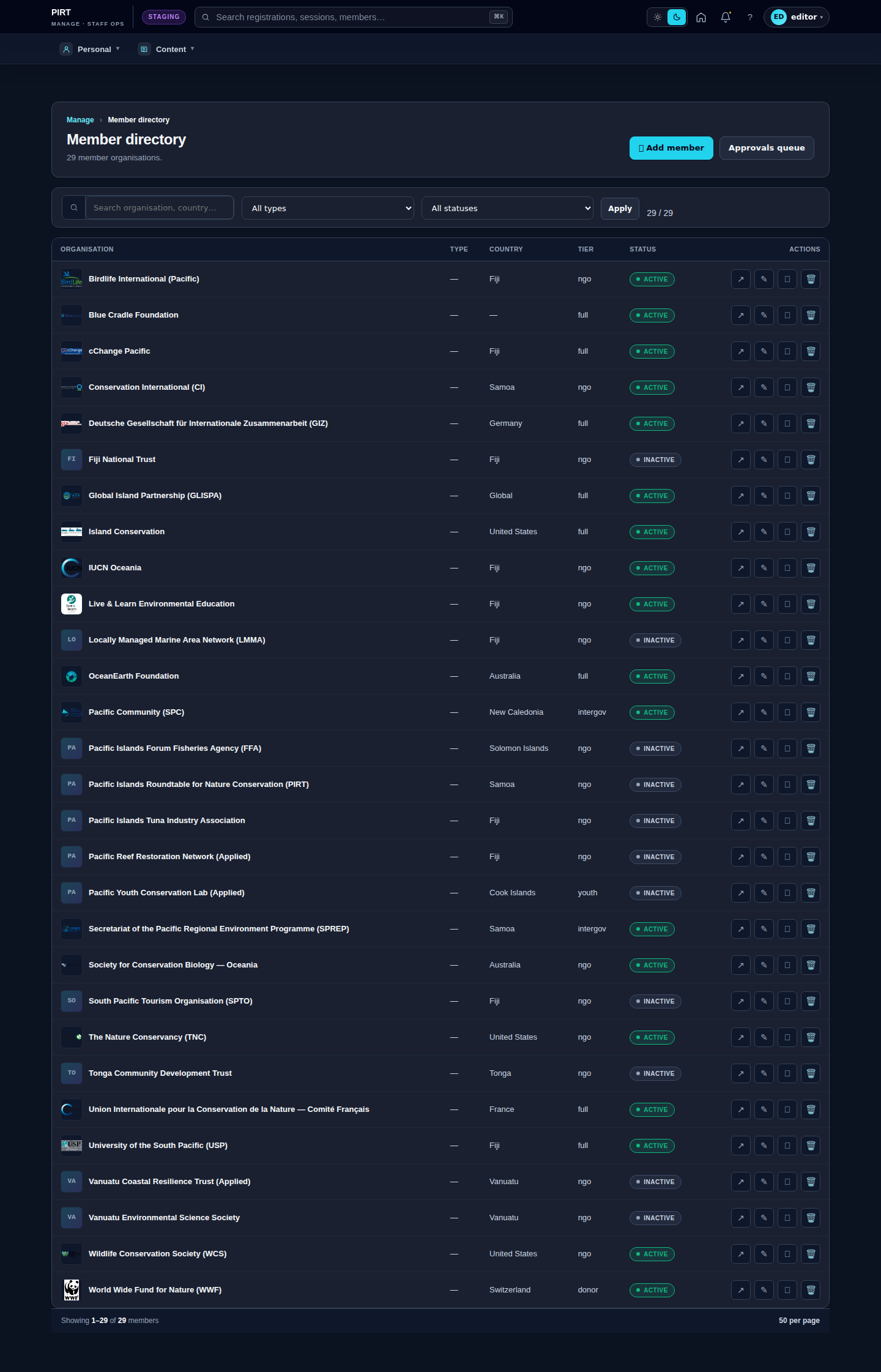
Manager