Editor vs Manager — who can do what
Roles: Editor, ManagerURL:
https://pirt.demo.weebpal.com/manage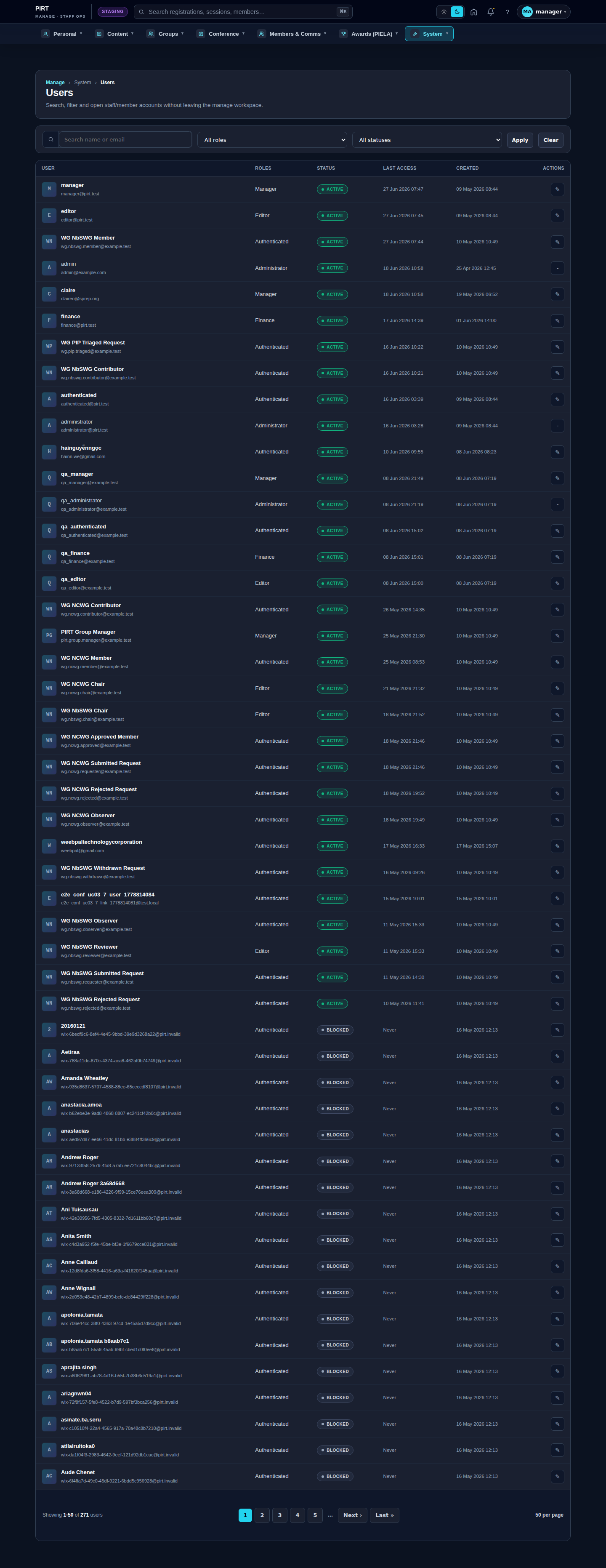
https://pirt.demo.weebpal.com/manage.Two roles do the content work
Day-to-day content on the PIRT site is managed by two roles. This guide is written for both. Everything in the chapters that follow is something one or both of these roles can do.
- Editor — PIRT / SPREP content staff. Creates and edits content and submits it for review. An Editor cannot publish, delete, or change site-wide configuration.
- Manager — the senior content role (programme manager, Secretariat lead, conference ops). A Manager does everything an Editor does plus approve, publish, delete, run the conference, and edit the site-wide "site copy".
Rule of thumb: an Editor drafts; a Manager approves and publishes. Give people the smallest role that lets them do their job — most content staff only need Editor.
What each role can do
Verified against the live site. ✅ full · 👁 view only · ❌ blocked ("Access denied").
| Task | Editor | Manager |
|---|---|---|
| Create & edit News, Events, Pages, Documents | ✅ draft → submit for review | ✅ + publish / unpublish / delete |
| Add a Funding opportunity | ❌ | ✅ |
| Upload new Media | 👁 use existing | ✅ + upload / add |
| Edit the Homepage | ❌ | ✅ |
| Menus, Blocks, Redirects, Site sections | ❌ | ✅ |
| Member organisations & approvals | ✅ directory | ✅ + approve / reject |
| Conference programme, sessions, travel, visa, livestreams, capacity | ✅ | ✅ |
| Conference registrations | 👁 view | ✅ full lifecycle |
| Registration emails & settings | ❌ | ✅ |
| PIELA Awards nominations | ✅ | ✅ |
| Working Groups — create the page | ❌ | ✅ |
| Working Groups — moderate the community | 👁 own group (if Chair) | ✅ all groups |
| Translations (conference scope) | ✅ draft | ✅ + publish |
| Taxonomy terms (categories, types, rooms, tracks…) | ✅ | ✅ |
| "Site copy" forms (About, legal, footer, homepage bands, PIELA categories…) | ❌ | ✅ |
The draft → publish flow
Most editorial content (News, Events, Pages, Documents) moves through moderation states:
- Draft — an Editor creates and saves. Not visible to the public.
- In review — the Editor submits it; it waits for a Manager.
- Published — a Manager approves and publishes; now live on the public site.
- Archived — a Manager takes it off the public site without deleting it.
Every change is saved as a revision, so you can review or roll back from the record's Revisions tab.
Where things are edited
- Most content lives in the
https://pirt.demo.weebpal.com/manageworkspace — the dark-themed staff area. Both roles open it the same way. - Site copy (the standing text on About, legal, footer, homepage bands, PIELA categories) currently lives on the
https://pirt.demo.weebpal.com/admin/config/pirt/*forms and is Manager-only — see Part 3 of this guide. Editors will see "Access denied" there.
Tips
- If you hit "Access denied", check the table above first — it is almost always the role, not a fault.
- Editors: when something is ready, use Submit for review so a Manager can publish it — don't wait to be asked.
- Managers: clear the review queue from the dashboard so nothing sits unpublished.