Managing Events & the Calendar
Roles: Editor, ManagerURL:
https://pirt.demo.weebpal.com/manage/content/events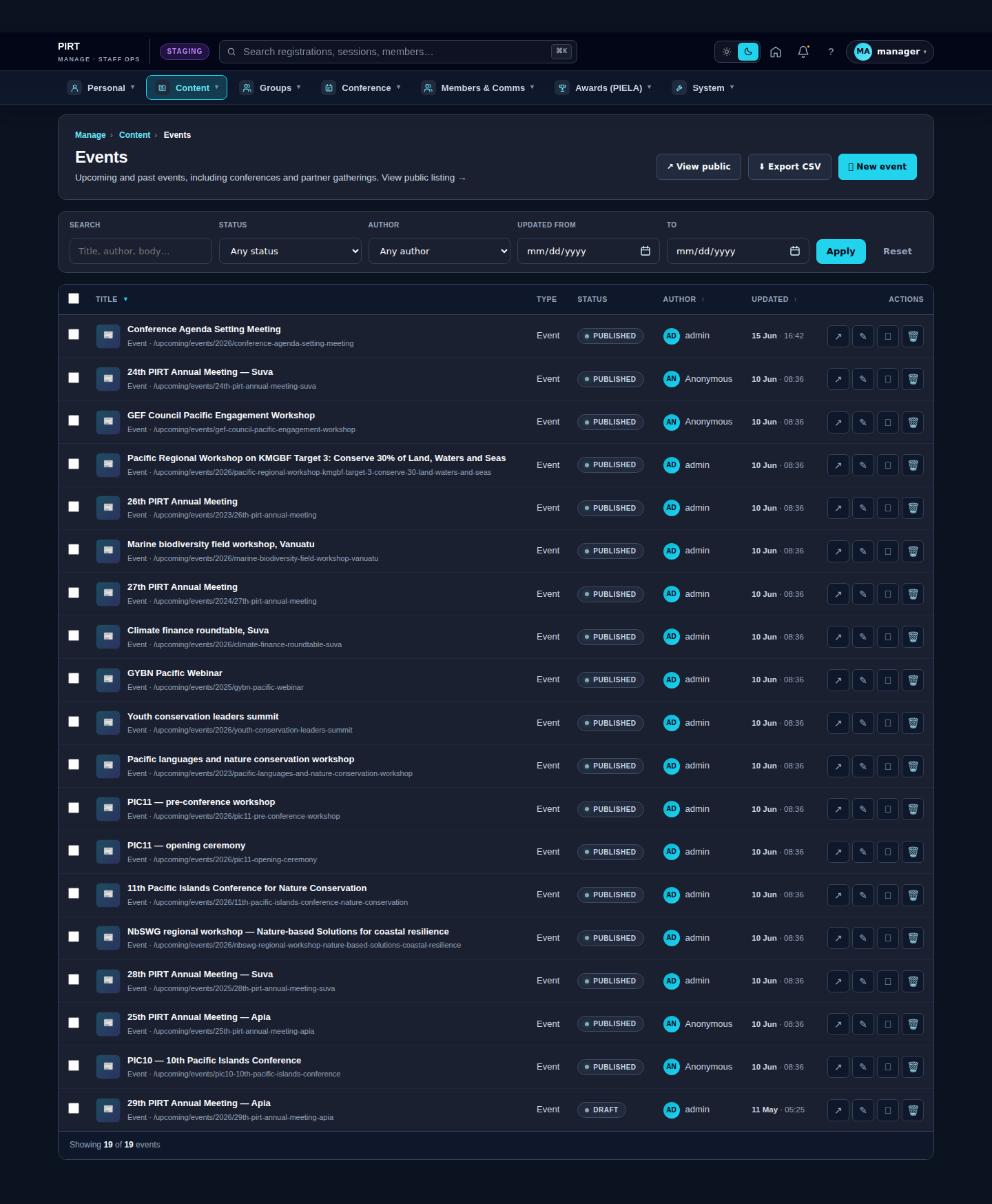
https://pirt.demo.weebpal.com/manage/content/events.Standard workflow
A. Create
- Open
https://pirt.demo.weebpal.com/manage/content/eventsinside thehttps://pirt.demo.weebpal.com/manageworkspace. - Click the + Add new button at the top right.
- Fill in the fields (see the table below). Required fields are marked
*. - Click Save as Draft to keep it private, or Save and Publish if you have publish rights (Manager+).
- The system auto-creates a URL alias (Pathauto) and pushes the entry into the search index.
B. Edit
- From the
https://pirt.demo.weebpal.com/manage/content/eventslist, use the filters (title, status, category) to find the record. - Click the title — or the Edit action under the Operations column.
- Update the content and click Save. Every save creates a new revision that you can review or roll back from the Revisions tab.
C. Publish / Unpublish
- Editor can only move content to In review (waiting for approval).
- Manager moves content to Published or Archived to remove it from the public site.
- Every status change is written to the activity log.
D. Delete
- Click Delete under the Operations column (Manager+ only).
- Drupal keeps the revision history; hard-delete requires an Administrator.
Fields
| Field | Type | Required? | Editor's note |
|---|---|---|---|
title | Text (255) | Yes | Event name. |
field_summary | Long text | No | One- or two-line teaser shown on the listing. |
body | Long text | No | Full description — rich text; add agenda, links, embedded media. |
field_image | Image | No | Featured image (16:9). |
field_event_date | Date & time | Yes | Start date/time — entered in local time, stored as UTC. |
field_event_end_date | Date & time | No | End date/time — leave blank for a single-moment event. |
field_event_location | Text | No | Venue / place (e.g. "Suva, Fiji" or "Online"). |
field_event_type | Reference (taxonomy: event_type) | No | Category — pick from the event_type vocabulary. |
field_event_format | List | No | In-person / Online / Hybrid. |
field_event_status | List | No | Scheduled / Postponed / Cancelled. |
field_event_capacity | Integer | No | Seats. Use this field (not the legacy field_capacity). |
field_registration_link | Link | No | External registration URL — overrides the default register CTA. |
field_a11y_note | Long text | No | Accessibility note (e.g. wheelchair access, interpretation). |
field_event_host | Reference | No | Hosting organisation. |
field_working_group | Reference | No | Link to a working group so the event also shows on that WG's page. |
Things to watch out for
- Two capacity fields exist —
field_event_capacity(new) andfield_capacity(legacy). Usefield_event_capacityfor new events; leave the legacy field alone. - Date & time: enter in the correct timezone — the system stores UTC.
- Recurring events (annual): create a new record for each year. Do not re-use one record by editing the date.
- Attachments (PDF agenda, brochure): upload to the Media library and link from the Body field.
- Working-group events: set
field_working_groupso the event also appears on that WG's page. - External registration: when registration runs on a partner platform, paste the URL into
field_registration_link— that overrides the default conference register CTA.
How Events appear on the public site
Editor vs Manager view
The same screen as each role sees it. Click a row to expand.
Editor
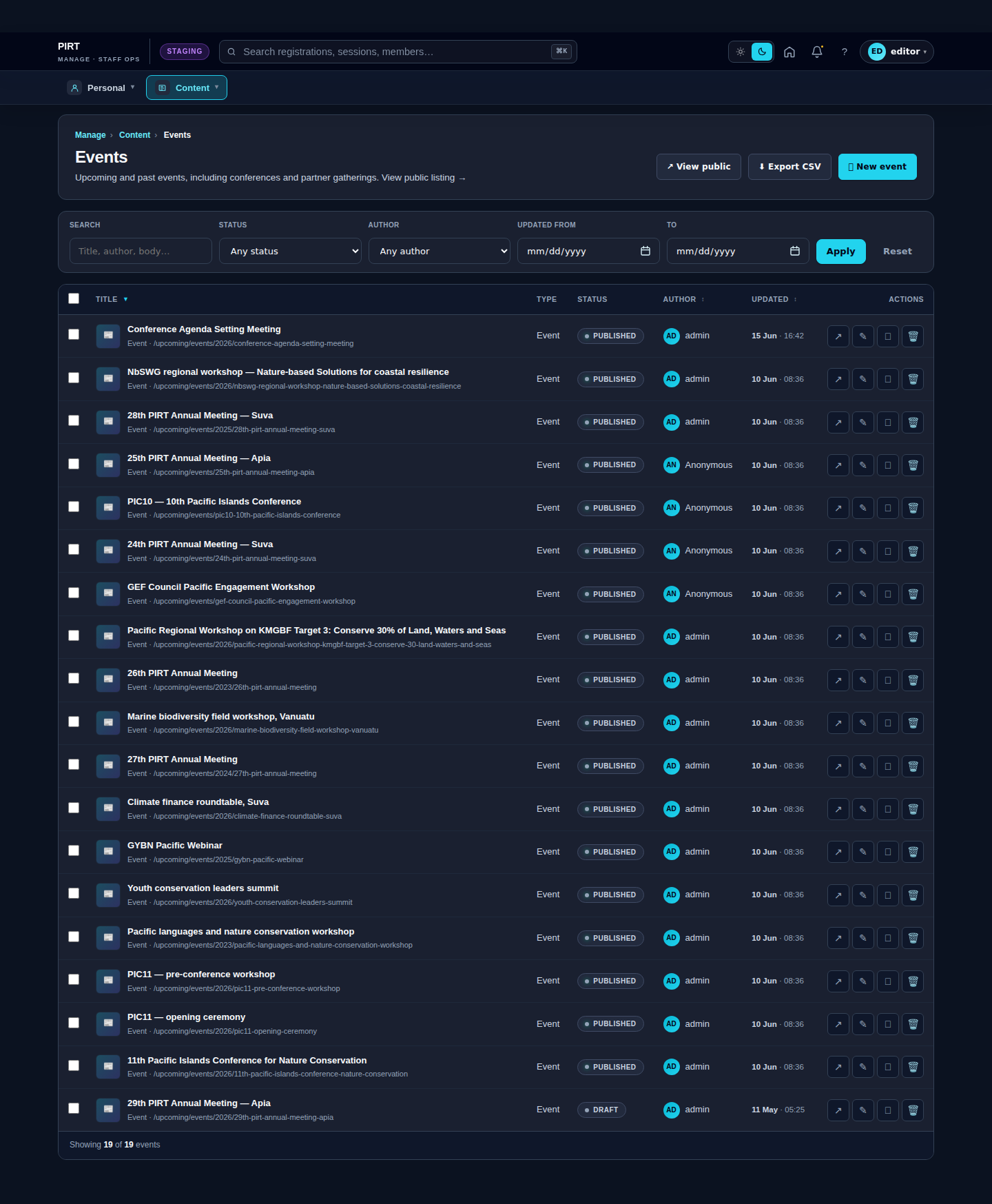
Manager