Pacific Nature Conference — full guide
https://pirt.demo.weebpal.com/manage/conferenceThe Pacific Nature Conference workspace at https://pirt.demo.weebpal.com/manage/conference brings together everything you need to run the conference. This single chapter covers settings, rooms & tracks, travel, visas, livestreams, the programme builder, sessions, registrations and the registration emails. Use the list on the left to jump to a section.
Cockpit overview
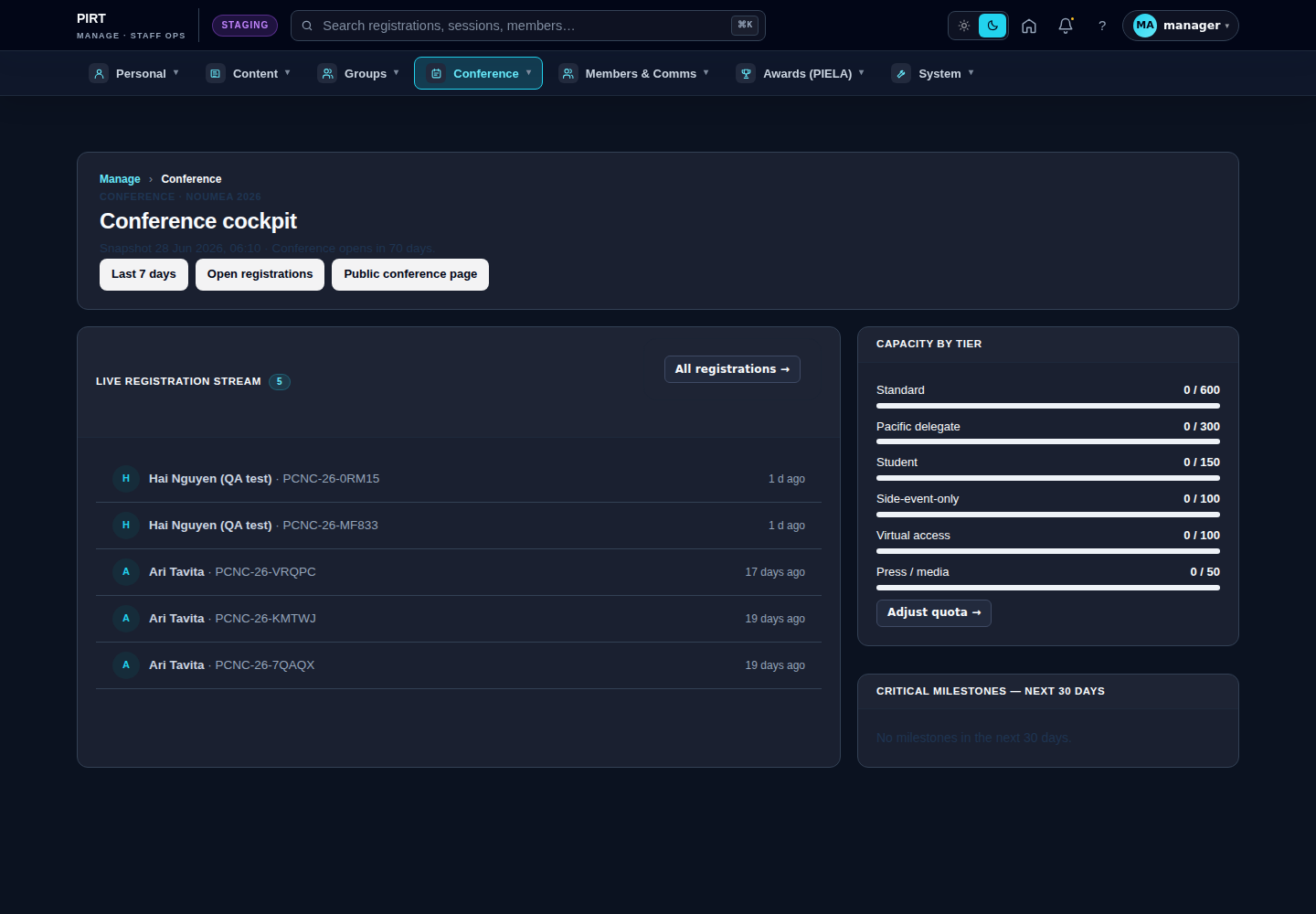
Cockpit areas
- KPI bar: total registrations · confirmed · pending · % of capacity · sessions scheduled / total.
- Milestones: registration-open date · abstract deadline · registration close · event date.
- Quick-action cards: View registrations · View programme · Export report.
- Next sessions table: the next 5 sessions (today/tomorrow) — click for detail.
Sub-pages in the Conference group
| Page | Used for |
|---|---|
https://pirt.demo.weebpal.com/manage/conference/settings |
Open/close registration, set dates, total capacity. |
https://pirt.demo.weebpal.com/manage/conference/rooms |
Room taxonomy. |
https://pirt.demo.weebpal.com/manage/conference/tracks |
Track / theme taxonomy. |
https://pirt.demo.weebpal.com/manage/conference/travel |
Travel providers (partner hotels, airlines). |
https://pirt.demo.weebpal.com/manage/conference/visa-requirements |
Visa entry requirements by country. |
https://pirt.demo.weebpal.com/manage/conference/livestreams |
Virtual participation / livestreams. |
https://pirt.demo.weebpal.com/manage/conference/programme |
Drag-drop sessions into the room × slot grid. |
https://pirt.demo.weebpal.com/manage/conference/sessions |
Create & edit individual sessions. |
https://pirt.demo.weebpal.com/manage/conference/registrations |
Registrations list & approvals. |
Translation (French)
The conference is the only area on PIRT with a French version — every other part of the manage workspace stays English-only. French is added per item: open a session, the conference record, a travel provider or a livestream and use its Translate tab. There is no bulk "translate everything" button.
Settings

What you can change here
| Section | Notes |
|---|---|
| Conference information | Name, edition number, theme, dates (start / end). |
| Public detail page | Hero text, sub-heading, lede, primary CTA label + URL. |
| Hero banner | Background image, gradient/overlay choice. |
| Countdown | Toggle to show/hide the countdown widget on the public landing page. |
| Registration state | field_registration_state — controls the public registration form. |
| Contact | Conference inbox email shown on the contact card. |
Opening / closing registration
Registration is controlled by field_registration_state on the active conference_edition. Allowed values are typically:
closed— public sees a "Registration not yet open" message.open— registration form athttps://pirt.demo.weebpal.com/pacific-nature-conference/registeris live.waitlist— form accepts entries but every entry goes onto the waitlist.closed_full— registration over; public sees "All seats are taken".
Workflow:
- Open
https://pirt.demo.weebpal.com/manage/conference/settings. - Locate Registration state in the form.
- Pick a state → click Save.
- The public site updates within ~1 minute (subject to page cache).
What the public sees
Email templates
Confirmation, waitlist and rejection email templates are typically managed in System Settings (https://pirt.demo.weebpal.com/admin/config/system/site-information for the From address; the email templates themselves may live in code config). If you need to change the wording, file an IT ticket — UI overrides are not exposed in the manage settings form.
Tips
- Before go-live: create a new
conference_editionnode, mark it Active. The public conference pages (https://pirt.demo.weebpal.com/pacific-nature-conference/*) re-render from the Active edition. - After the conference: change the edition's state from Active → Past. The History page (
https://pirt.demo.weebpal.com/pacific-nature-conference/history) auto-adds it to the timeline. - Multiple editions: only one edition is Active at a time. Switching Active editions is a single field change but invalidates the public-page cache for every conference URL.
Translation (EN ↔ FR)
The conference node is fully translatable. After you save EN here, an EN only row appears on https://pirt.demo.weebpal.com/manage/content/translations until a Manager publishes the French version.
Translatable on this form: title, short title, location city/country, venue name/address, all hero fields (badge, eyebrow, title, lede, trust line), CTA labels (primary + secondary), overview & "plan your trip" copy, key facts, countdown band copy, body, summary and legacy badges.
Not translatable: start / end dates, timezone, capacity, references to rooms / tracks, registration state — these are language-neutral and shared between EN and FR.
Use the conference node's Translate tab for the side-by-side EN/FR editor; the fields listed above are the supported translatable set.
Rooms & Tracks
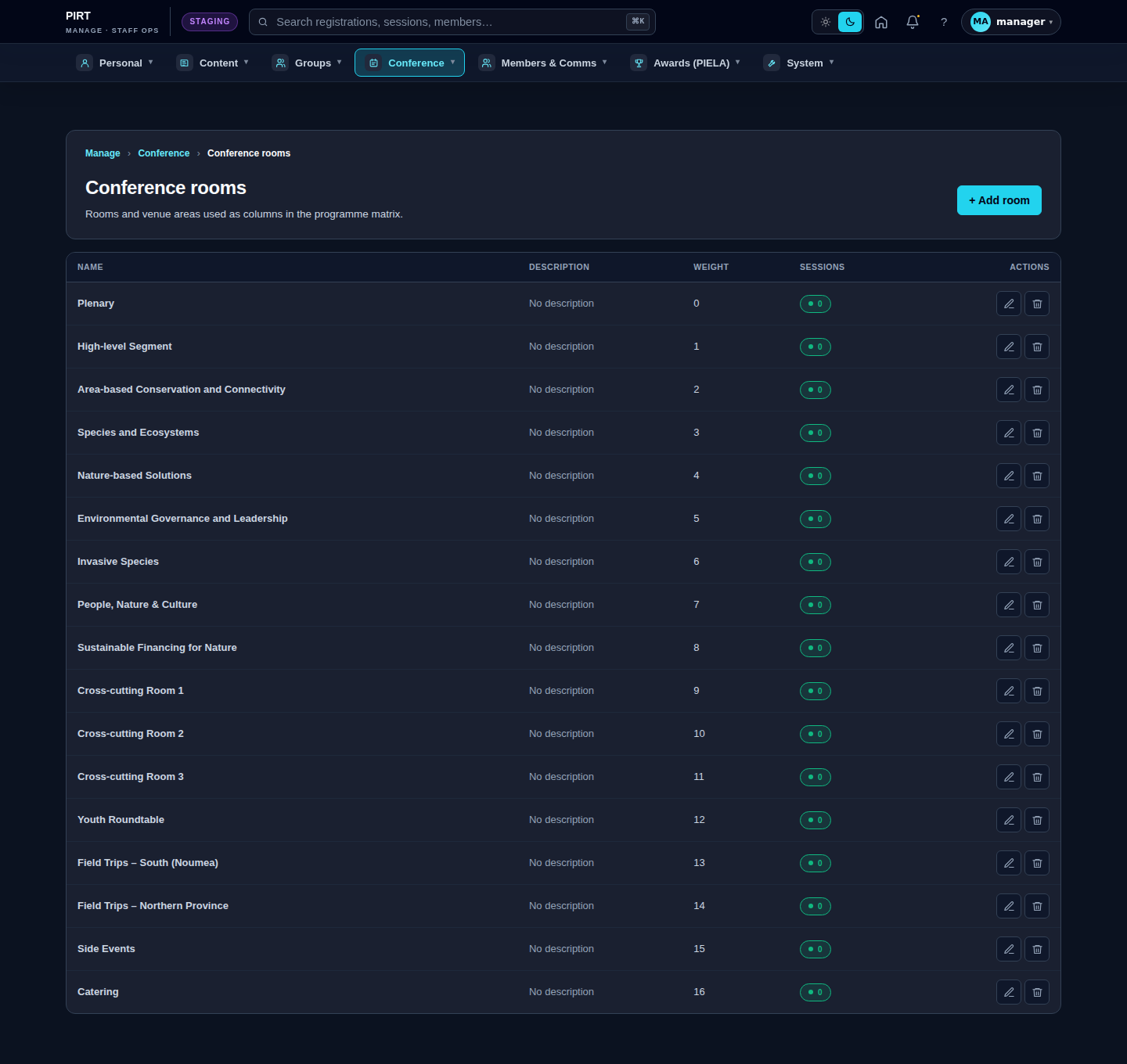
Rooms
Each room has: Name (e.g. "Plenary Hall A"), Capacity (seats), Location (free text).
- Go to
https://pirt.demo.weebpal.com/manage/conference/rooms→ click + Add room. - Fill in Name + Capacity + Location.
- Save. The new room appears in the Programme builder's dropdown.
- Note: changing the capacity of a room that already has sessions affects available seats — a warning appears.
https://pirt.demo.weebpal.com/manage/conference/rooms.Tracks
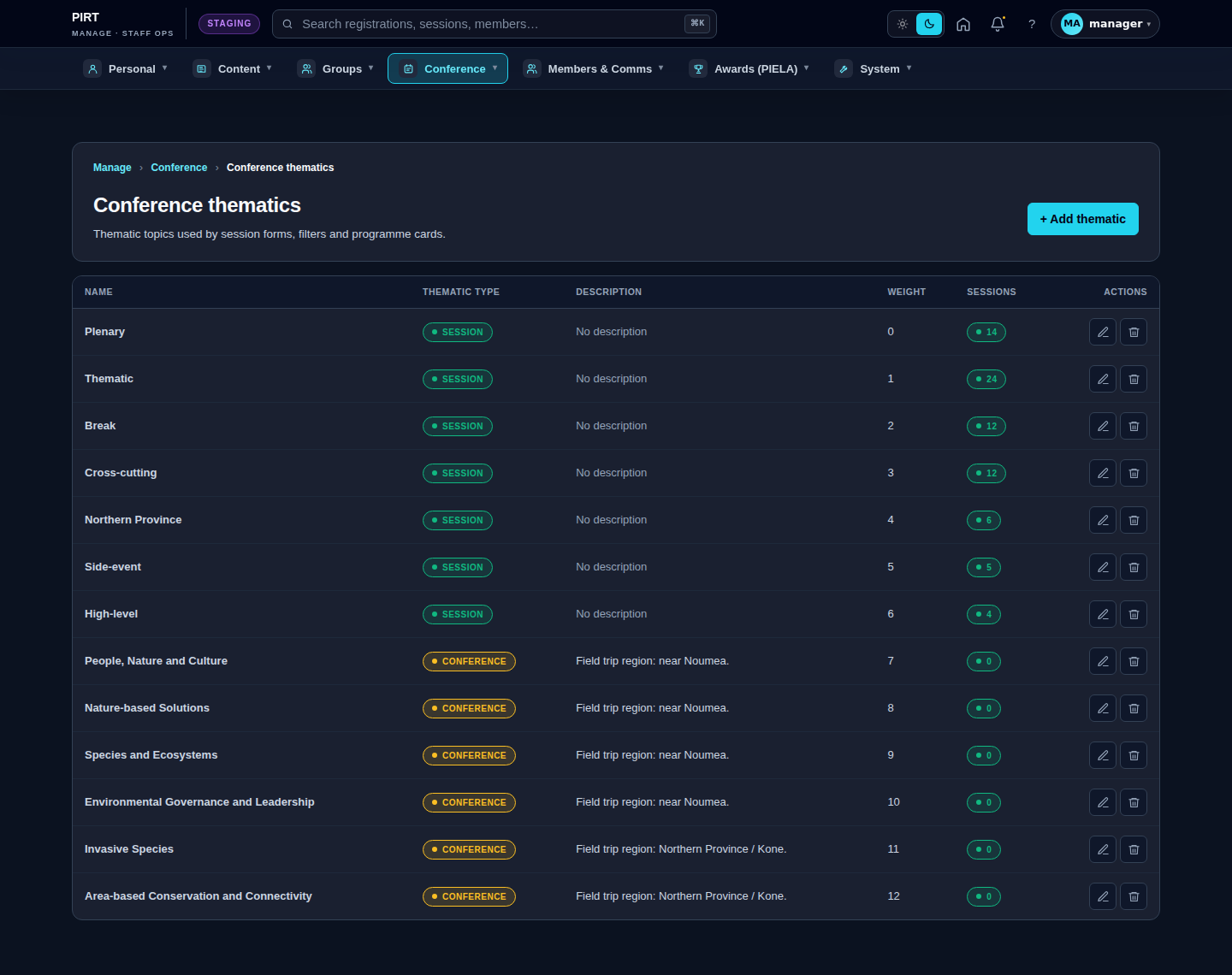
Each track has: Name (e.g. "Marine Biodiversity"), Colour (colour picker — shown on the programme grid), Short description.
- Go to
https://pirt.demo.weebpal.com/manage/conference/tracks→ + Add track. - Set Name + Colour + Description.
- Save. The track becomes a filter in the Programme builder and the public listing.
https://pirt.demo.weebpal.com/manage/conference/tracks.Partner hotels
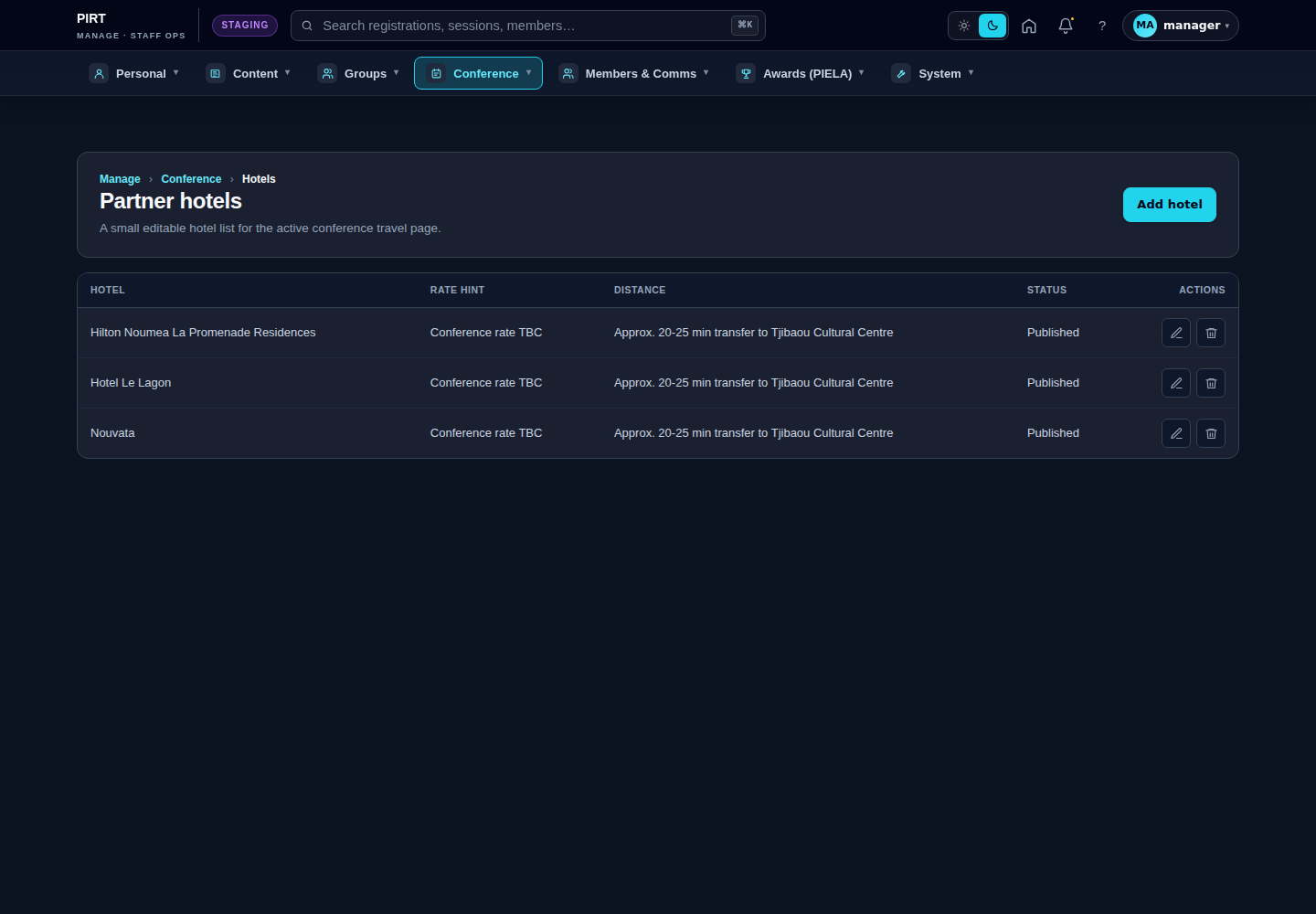
Each hotel has: Name, Logo, Tier (Premium / Standard / Budget), Distance to venue, Booking link, Indicative price.
- Go to
https://pirt.demo.weebpal.com/manage/conference/hotels→ + Add hotel. - Upload the logo (square aspect) and fill in the details.
- Save. The hotel appears on
https://pirt.demo.weebpal.com/pacific-nature-conference/venue.
Rules of the road
- Don't delete an item that sessions or registrations reference — Archive it instead.
- Renaming (Name) takes effect immediately; changing the slug creates an old → new redirect.
Translation (EN ↔ FR)
Conference taxonomies and partner hotels are part of the conference translation allowlist.
- Rooms (
conference_roomtaxonomy): term name + description are translatable via config translation. Open a term → Translate tab → Add French. - Tracks (
conference_tracktaxonomy): same flow as rooms. - Partner hotels (
partner_hotelnode): title, address, rate, distance and amenities are translatable; booking URL, phone, email and promo code are language-neutral. Image files are shared between languages — only the alt text needs a French variant.
After changing an English room, track or travel provider, open its Translate tab to add or update the French version.
Travel providers & Hotels
What this manages
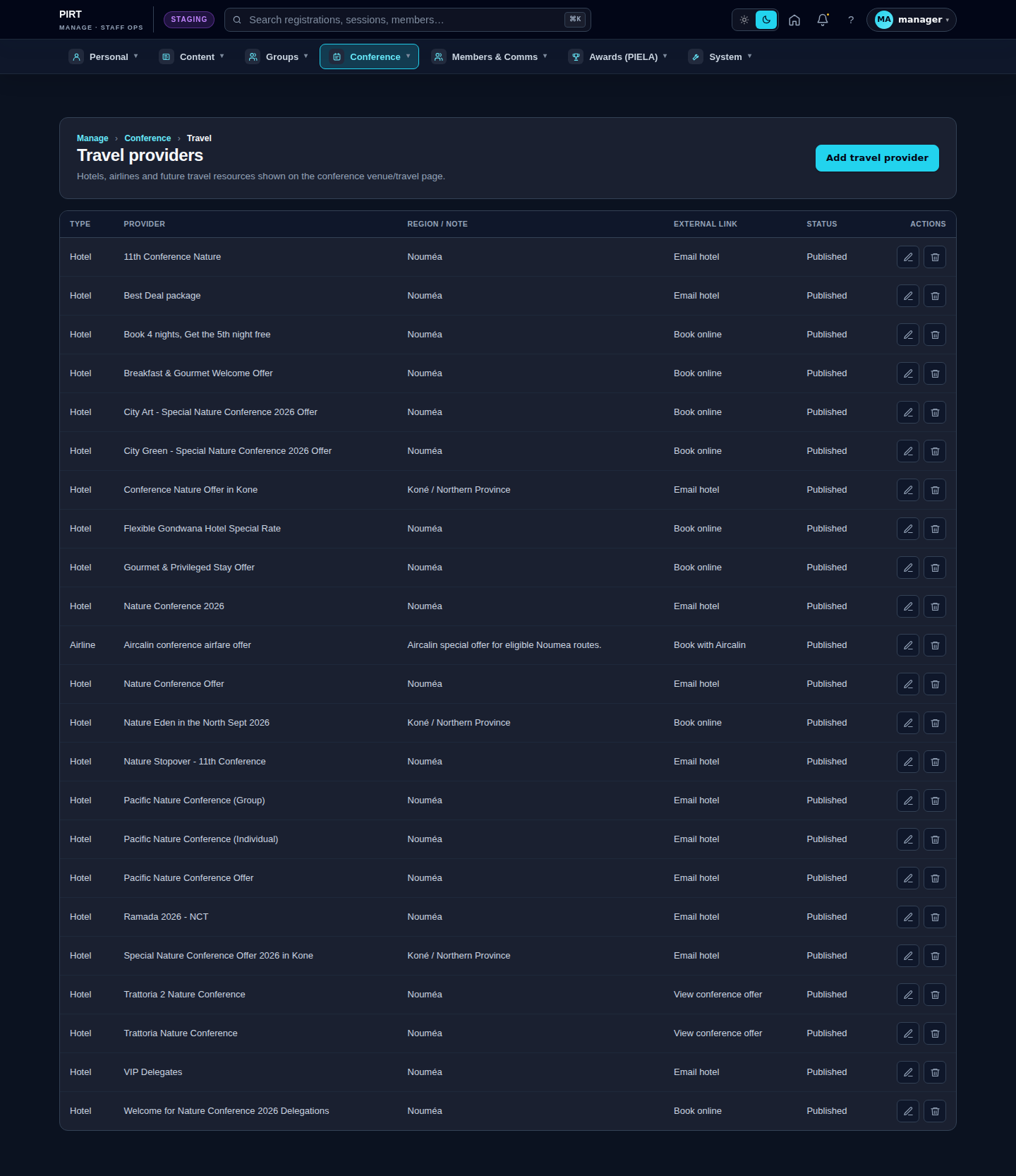
The Travel providers screen at https://pirt.demo.weebpal.com/manage/conference/travel holds the cards shown on the public Venue & Travel page at https://pirt.demo.weebpal.com/pacific-nature-conference/venue and on each provider's own detail page. A travel provider is a piece of practical, delegate-facing logistics content: a partner hotel, an airline (for example Aircalin), a ground-transport / transfer option, or any future travel-support resource that helps delegates reach and stay in Noumea for the conference (7–11 September 2026).
Each provider is a travel_provider content node tied to the active conference. Following the principle that content lives in entities, not in code, every word, rate, link and image on a travel card is stored here and edited through this screen — the venue-page template only decides where the cards appear, never what they say.
This is the current travel system. It supersedes the older standalone Hotels list at https://pirt.demo.weebpal.com/manage/conference/hotels, which still exists as legacy and may still be linked from the menu. For the conference programme you should add and edit accommodation as a Hotel-type travel provider here, not on the legacy Hotels screen — keeping everything on one page so airlines, transfers and hotels sit side by side.
Both Editors and Managers can use this screen (Administrators too). It is reached from the top navigation under Conference.
Standard workflow
A. Find a provider
- Open
https://pirt.demo.weebpal.com/manage/conference/travel. - The list shows one row per provider with its Type (Hotel, Airline, …), Provider name, Region / route, External link label, and Status (Published / unpublished), plus edit and delete actions.
- Use your browser's Find on page (
Ctrl+F/Cmd+F) to jump to a hotel or airline by name.
B. Add a provider
- Click Add travel provider (top right). This opens the form at
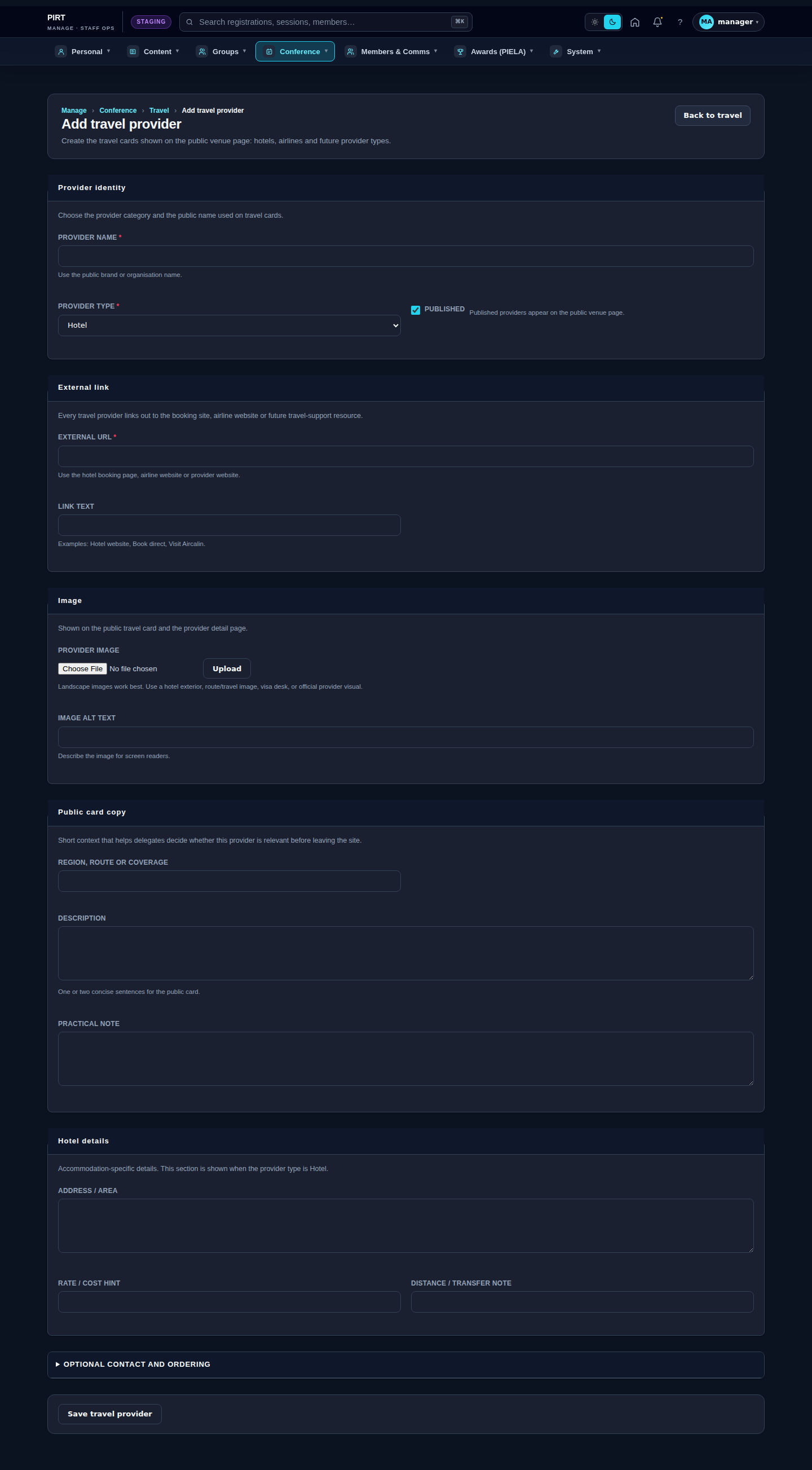
https://pirt.demo.weebpal.com/manage/conference/travel/add. - Under Provider identity, enter the Provider name and choose the Provider type (Hotel, Airline, …). Leave Published ticked so the card appears on the public venue page.
- Under External link, paste the External URL (the booking page, airline site or provider website) and an optional Link text such as Book direct or Visit Aircalin.
- Under Image, upload a landscape Provider image (a hotel exterior, route image or official visual) and write short Image alt text for screen readers.
- Under Public card copy, fill the Region, route or coverage, a one- or two-sentence Description, and an optional Practical note.
- The Hotel details section (Address / area, Rate / cost hint, Distance / transfer note) appears only when the provider type is Hotel — it stays hidden for airlines and transfers.
- Open Optional contact and ordering only if you need a direct Contact email or phone, or a Sort weight to tune the card order (lower numbers appear first within each type).
- Click Save travel provider. You return to the list and the card appears on
https://pirt.demo.weebpal.com/pacific-nature-conference/venueonce the cache refreshes.
C. Edit a provider
- On the list, click the ✎ (edit) icon for the row, or open the provider and choose Edit.
- Change any field. To take a card off the public page without deleting it, untick Published.
- Click Save travel provider.
D. Delete a provider
- Click the 🗑 (delete) icon and confirm on the delete form.
- Prefer unpublishing. If a hotel block is full or an offer ends, untick Published instead of deleting — that keeps the record for next year and removes the card from the public page immediately.
Fields
Each provider is a travel_provider node. The form groups its fields into sections:
| Field | Section | What it holds |
|---|---|---|
Provider name (title) |
Provider identity | The public brand or organisation name. Required. |
field_travel_provider_type |
Provider identity | The category term (Hotel, Airline, …) from the travel_provider_type vocabulary. Required; controls which sections show. |
Published |
Provider identity | When ticked, the card appears on the public venue page. |
field_travel_provider_url |
External link | The booking / website URL (required) plus optional Link text shown on the button. |
field_image + alt |
Image | Landscape card image (PNG/JPG/WEBP, up to 8 MB) and its alt text. |
field_travel_provider_region |
Public card copy | Region, route or coverage label (e.g. Noumea, Nadi → Noumea). |
body |
Public card copy | Short description for the card and detail page. |
field_travel_provider_note |
Public card copy | Practical note (cancellation terms, transfer tips). |
field_travel_provider_address |
Hotel details | Address / area. Hotel type only. |
field_travel_provider_rate |
Hotel details | Rate / cost hint (e.g. From 20,000 XPF per night). Hotel type only. |
field_travel_provider_distance |
Hotel details | Distance / transfer note to the venue. Hotel type only. |
field_travel_provider_email / _phone |
Optional | Direct contact details, shown only if filled. |
field_travel_provider_weight |
Optional | Sort weight — lower values appear first within the type. |
On the public side these become a tidy card per provider, grouped by type, each linking to a detail page with a Quick facts sidebar (Type, Region, Address, Rate) and the description and practical note as body copy.
Tips
- Use this screen, not the legacy Hotels list. Add accommodation as a Hotel-type provider here so it sits alongside airlines and transfers; the old
https://pirt.demo.weebpal.com/manage/conference/hotelspage is kept only for legacy data. - Pick the right type. The type controls which sections appear and how the card is grouped — the Hotel-only fields (address, rate, distance) stay hidden for airlines and transfers, so choose the type before filling those in.
- Always set an external URL. Every card links out to a booking or provider site; the form requires it. Add friendly link text so the button reads Book direct rather than a raw address.
- Landscape images look best. The card crop favours wide images — a hotel exterior or route photo works better than a portrait shot or a logo.
- Order with sort weight. To feature a preferred hotel or the official airline, give it a lower Sort weight so it leads its group.
- Unpublish, don't delete, when a block sells out or an offer lapses — it keeps the record and clears the public page in one tick.
Visa entry requirements
What this manages
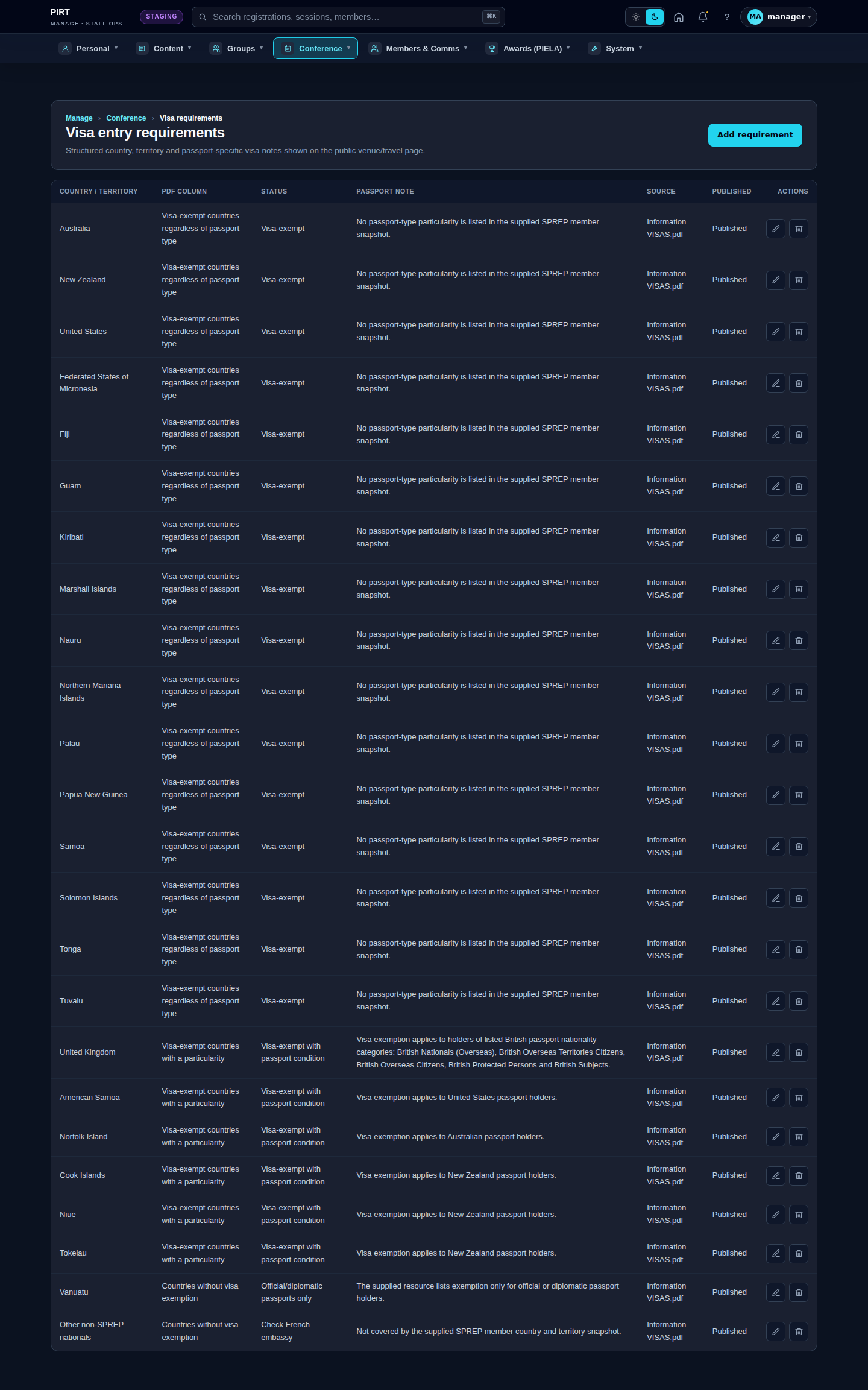
The Visa entry requirements screen at https://pirt.demo.weebpal.com/manage/conference/visa-requirements maintains the structured table of who needs a visa to enter New Caledonia for the conference. Each row is one country, territory or passport case, sorted into an entry-rule group — for example visa-exempt, visa-exempt with a passport condition, exempt only for official / diplomatic passports, or visa required — so delegates can find their situation quickly before they travel.
Each row is a visa_entry_requirement content node tied to the active conference. The published rows feed the public visa and entry requirements table on the Venue & Travel surface, where the entry-rule group drives the exposed filter. The same data also backs the generate visa letter action on a registration: when staff produce an invitation / visa-support letter for a delegate, the delegate's country is matched against these rows to state the correct entry rule. Keeping the table accurate here therefore keeps both the public guidance and the letters correct.
As with all editorial content, the wording lives in entities, not in templates: the country labels and notes shown to delegates are stored on these nodes and edited through this screen. Both Editors and Managers can use it (Administrators too).
Standard workflow
A. Find a row
- Open
https://pirt.demo.weebpal.com/manage/conference/visa-requirements. - The list shows each row's country / territory, its entry-rule group (PDF column), its requirement status, and Published state, with edit and delete actions.
- Rows appear in Sort weight then name order; use Find on page to jump to a country.
B. Add a row
- Click Add visa requirement (top right), opening the form at
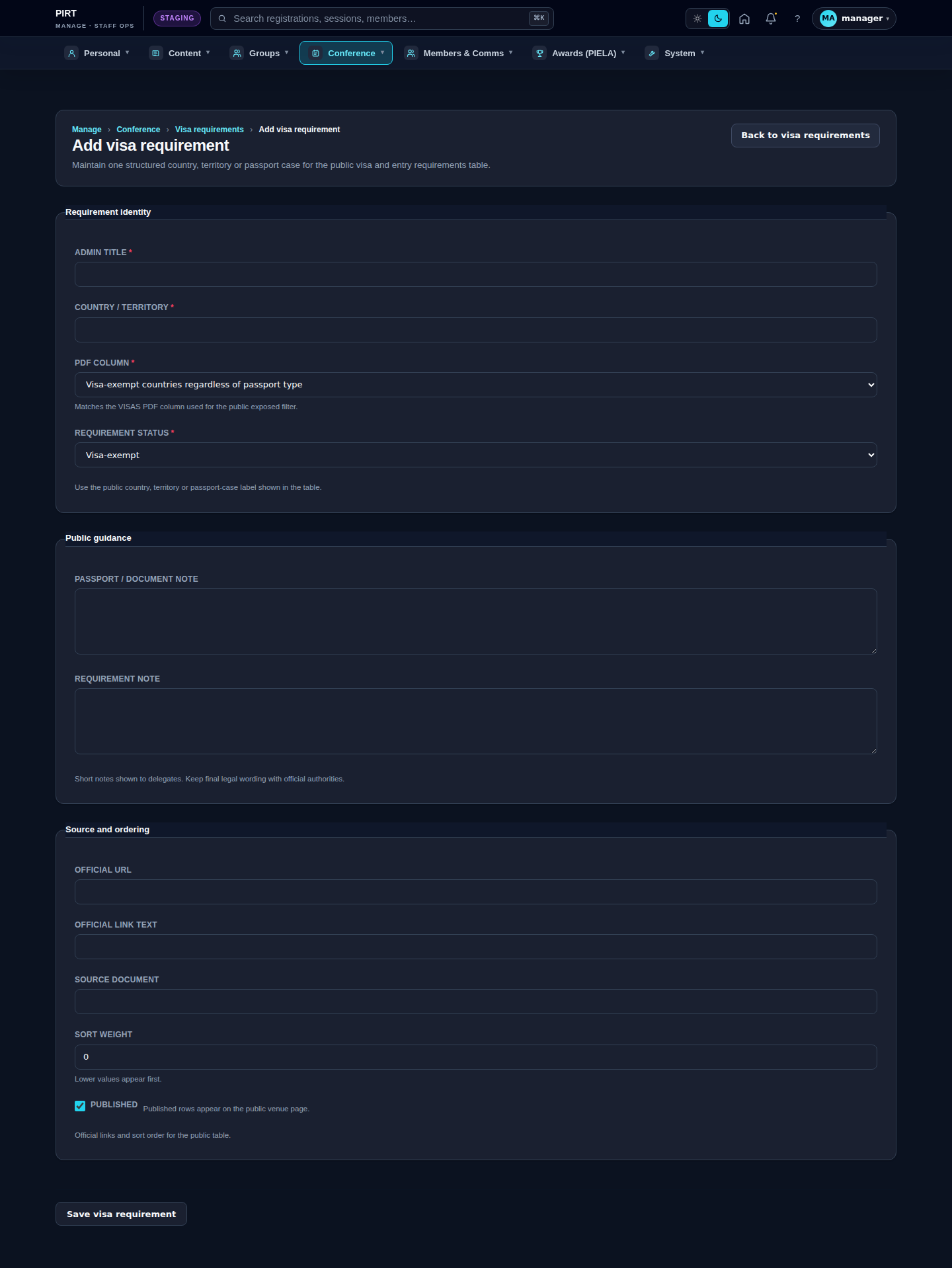
https://pirt.demo.weebpal.com/manage/conference/visa-requirements/add. - Under Requirement identity, enter an Admin title (an internal label) and the public Country / territory name.
- Choose the PDF column — this is the entry-rule group the row is filed under, matching the column used by the official VISAS PDF and the public exposed filter.
- Choose the Requirement status from the fixed list (see the fields table below). This is the precise rule shown against the country.
- Under Public guidance, add a short Passport / document note and a Requirement note if delegates need extra context (validity rules, where to apply). Keep final legal wording aligned with the official authorities.
- Under Source and ordering, optionally add an Official URL and link text to the authoritative guidance, a Source document reference, and a Sort weight. Leave Published ticked to show the row publicly.
- Click Save visa requirement.
C. Edit a row
- Click the ✎ (edit) icon on the row, or open it and choose Edit.
- Adjust the group, status or notes. To hide a row without losing it, untick Published.
- Click Save visa requirement.
D. Delete a row
- Click the 🗑 (delete) icon and confirm.
- Prefer unpublishing. Because these rows also inform the visa-letter action on registrations, keep them in place where possible and unpublish rather than delete, so the lookup for letters still resolves.
How groups map to countries
Think of the screen as two levels. The PDF column (the entry-rule group) is the heading a country sits under on the public table and in the official PDF; the Requirement status is the exact rule for that one country. Several countries can share a group, but each has its own row and its own status and notes. Add one row per country / territory / passport case — do not list many countries in a single row, or the public filter and the visa-letter lookup cannot match an individual delegate.
Fields
| Field | What it holds |
|---|---|
Admin title (title) |
Internal label for the row. Required. Falls back to the country name if left blank. |
field_visa_country |
The public country / territory / passport-case label shown in the table. Required. |
field_visa_requirement_group |
The PDF column — a term from the visa_entry_requirement_group vocabulary, matching the official VISAS PDF column and driving the public filter. Required. |
field_visa_requirement_status |
The exact rule. One of: Visa-exempt, Visa-exempt with passport condition, Exempt only for official/diplomatic passports, Visa required / application needed, Check French embassy. Required. |
field_visa_passport_note |
Short passport / document note for delegates. |
field_visa_requirement_note |
Short requirement note (extra context or conditions). |
field_visa_official_link |
Official URL + link text to authoritative guidance. |
field_visa_source |
Source document reference for staff traceability. |
field_visa_weight |
Sort weight — lower values appear first. |
Published |
When ticked, the row appears on the public venue page. |
Tips
- One country per row. The public filter and the visa-letter lookup match a single delegate's country, so never bundle several countries into one row.
- Match the official PDF. The PDF column options mirror the VISAS PDF; choosing the right one keeps the public table grouped exactly as the official source.
- Status, then notes. The five status options are deliberately exhaustive — pick the closest one, then use the notes for any condition (passport validity, official-passport-only, embassy check).
- This drives the visa letters. Edits here flow straight into the generate visa letter action on registrations, so review the table before a wave of letters goes out.
- Keep it official. Add an Official URL so delegates can verify the current rule with the French authorities — and record the Source document so staff know where each row came from.
- Unpublish, don't delete, if a row is temporarily uncertain — that removes it from the public table while keeping the record for the letter lookup.
Livestreams
What this manages
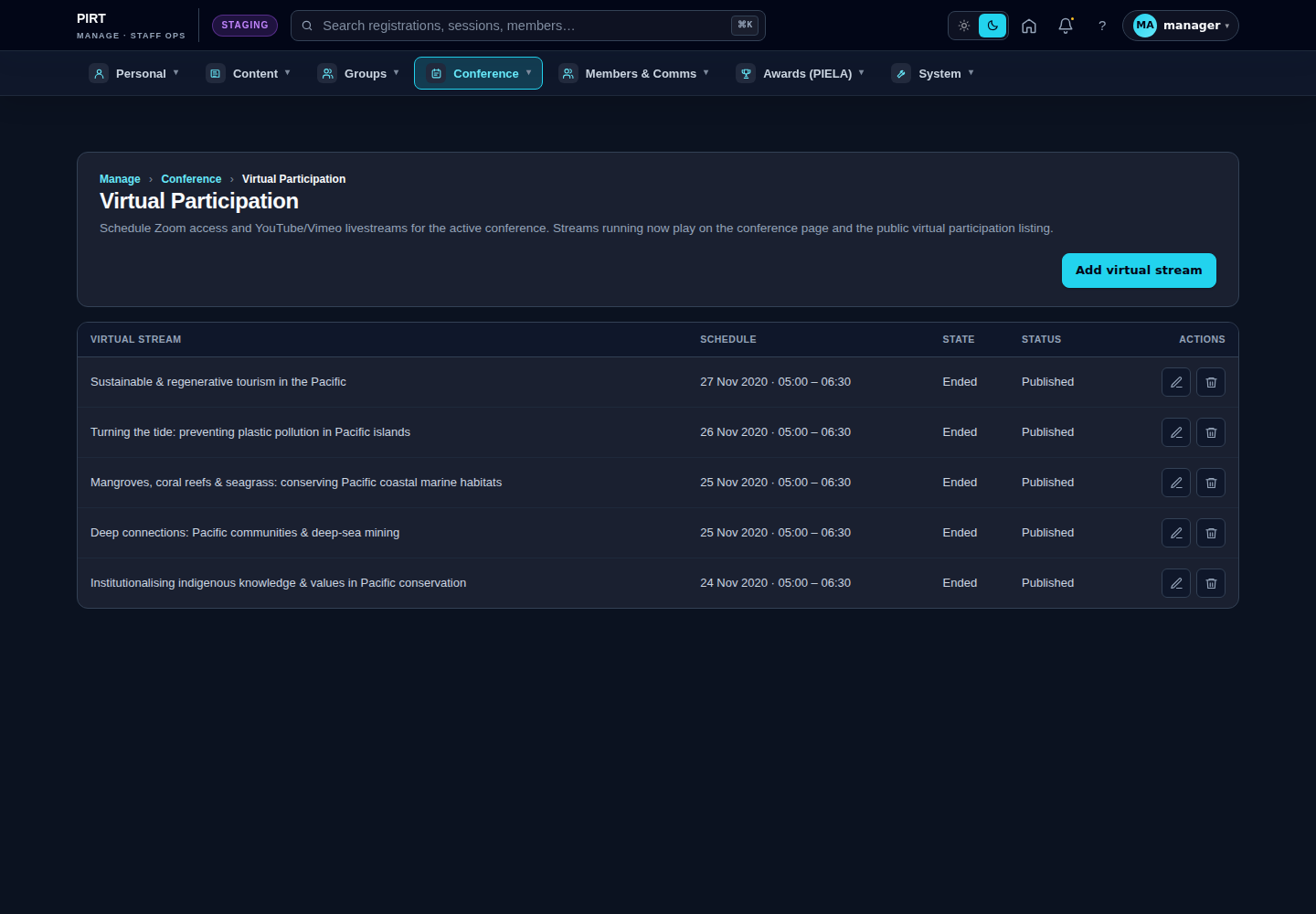
The Virtual Participation screen at https://pirt.demo.weebpal.com/manage/conference/livestreams holds the live and recorded video sessions delegates watch online. Each entry is a livestream content node — a YouTube or Vimeo video (the watch-along player) and/or a Zoom room URL (the interactive room for registered virtual participants and country hubs), with a scheduled start and end.
Published entries appear on the public page at https://pirt.demo.weebpal.com/pacific-nature-conference/virtual-participation, where they are shown as upcoming streams, a Live now auto-playing block while a stream is running, and a grid of replays afterwards. Each stream also has its own detail page with the embedded player and, where set, a Join Zoom room button.
Following the principle that content lives in entities, the titles, descriptions and links are stored on these nodes and edited here — the public template only lays them out. Both Editors and Managers can manage virtual participation (Administrators too). The screen is reached from the top navigation under Conference.
A note on "streams"
Do not confuse a virtual stream (a video here) with a programme stream. The latter is a parallel-track label managed at https://pirt.demo.weebpal.com/manage/conference/streams (with https://pirt.demo.weebpal.com/manage/conference/streams/add) — a short Name, Description and Sort order used by session forms and the programme matrix columns. That screen is covered with the programme tools; this chapter is about the live and recorded video entries.
Standard workflow
A. Find a stream
- Open
https://pirt.demo.weebpal.com/manage/conference/livestreams("Virtual Participation"). - The list shows each entry's title, its schedule (date and start–end time), its computed State (Upcoming / Live / Ended) and Published status, with edit and delete actions.
B. Add a stream
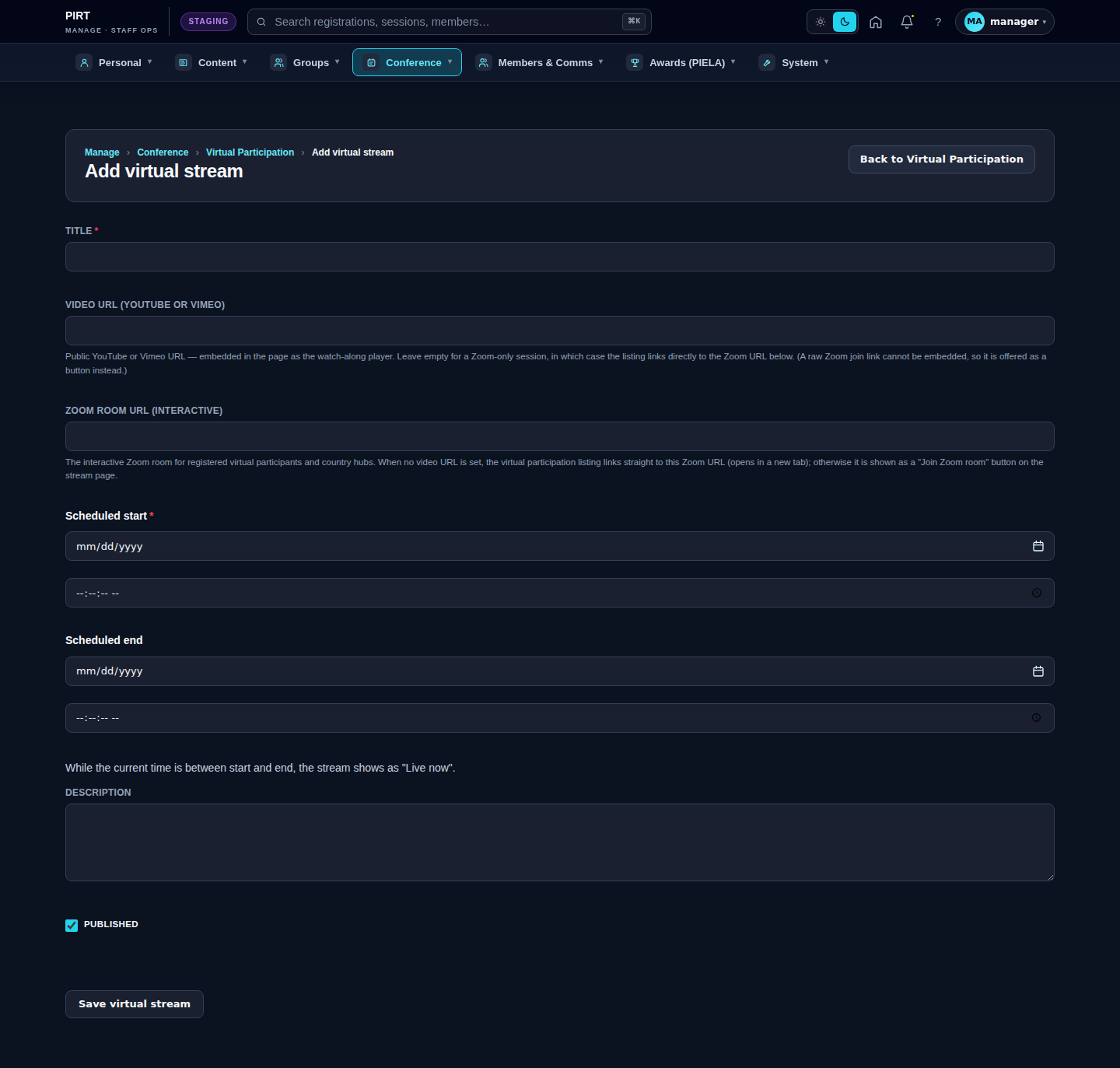
- Click Add virtual stream (top right), opening the form at
https://pirt.demo.weebpal.com/manage/conference/livestreams/add. - Enter the Title.
- Paste a public Video URL (YouTube or Vimeo). This is embedded as the watch-along player. On save the system finds or creates a matching remote video media item automatically — you only paste the URL.
- Optionally add a Zoom room URL for the interactive room. A stream needs either a video URL or a Zoom URL (or both). When there is no video, the public listing links straight to the Zoom URL; when there is a video, the Zoom URL becomes a Join Zoom room button on the stream page.
- Set the Scheduled start (required) and Scheduled end using the date and time pickers. Enter the times in the site timezone — they are stored as UTC for you. The end must be after the start.
- Add an optional Description. Leave Published ticked to show the stream publicly.
- Click Save virtual stream.
C. Edit a stream
- Click the ✎ (edit) icon on the row.
- Adjust the URLs, schedule or description. To take a stream offline without deleting it, untick Published.
- Click Save virtual stream.
D. Delete a stream
- Click the 🗑 (delete) icon and confirm.
- Prefer unpublishing a replay you want to retire but keep — deleting removes the entry entirely.
How the "Live now" block flips automatically
You do not switch a stream "live" by hand. Each entry's State is computed from the clock against its Scheduled start and end:
- Before the start time the stream is Upcoming and listed with its scheduled time.
- While the current time is between start and end it becomes Live now — the public page promotes it into the auto-playing Live block.
- After the end time it shows as Ended and joins the Replays grid (the same embedded video remains watchable as a recording).
Because the flip is purely time-based, the most important thing you set is the schedule. Get the start and end right and the page promotes, plays and retires the stream on its own. If a session over-runs, extend the Scheduled end to keep it in the Live block.
Fields
| Field | What it holds |
|---|---|
Title |
The session title shown in the listing and on the player page. Required. |
Video URL → field_livestream_video |
Public YouTube or Vimeo URL. Saved as a remote video media item (found-or-created) and embedded as the watch-along player. |
field_livestream_zoom_url |
Interactive Zoom room URL for registered virtual participants and hubs. Becomes a Join Zoom room button, or the direct link when there is no video. |
field_livestream_start |
Scheduled start. Entered in the site timezone, stored as UTC. Required. |
field_livestream_end |
Scheduled end. Defines the close of the Live now window; must be after the start. |
body |
Optional description shown on the stream page. |
Published |
When ticked, the entry appears on the public Virtual Participation page. |
The State column (Upcoming / Live / Ended) is not a stored field — it is computed from the start and end against the current time.
Tips
- The schedule is the switch. "Live now" is automatic; set accurate start and end times rather than trying to toggle a status by hand.
- Enter local, stored UTC. Type the times as they appear on the agenda — the form converts them to UTC for you. Double-check the date if your browser timezone differs.
- Paste the URL, not an embed code. Just drop in the plain YouTube or Vimeo address; the player and media item are built for you.
- Zoom-only is fine. Leave the video URL empty and set only the Zoom URL for an interactive-only session — the listing will link straight to Zoom.
- Extend the end if a session over-runs to keep it in the Live block; shorten it to move a replay into the grid sooner.
- Replays are free. Once a stream ends the same embedded video keeps playing as a recording — no separate "replay" record is needed.
- Programme streams are elsewhere. For parallel-track labels use
https://pirt.demo.weebpal.com/manage/conference/streams, not this screen.
Programme builder
Grid layout
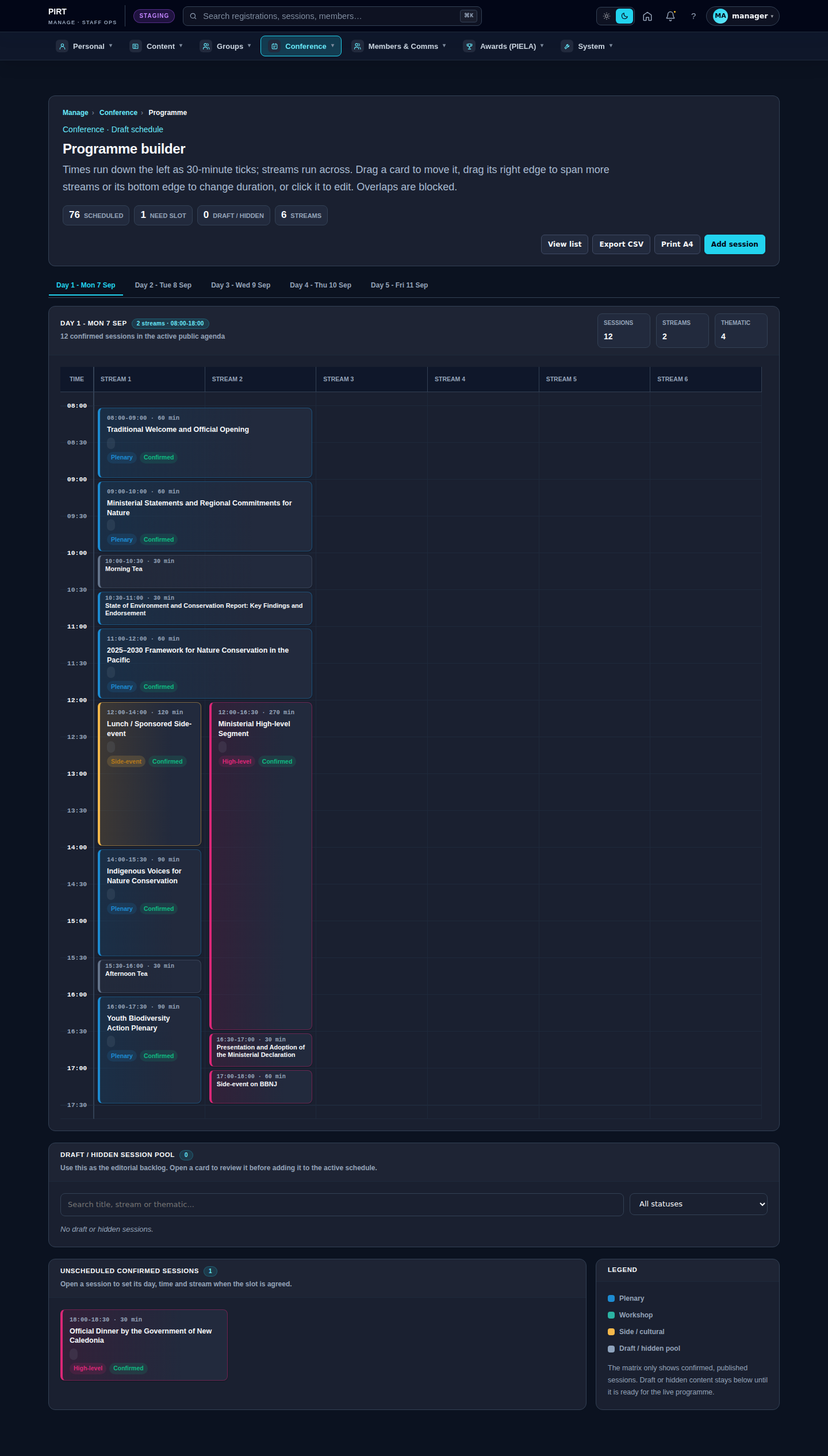
- Columns = rooms (in the order you set them).
- Rows = time slots (08:30, 09:00, 09:30, …).
- Cards = sessions (track colour fills the card; shows title, room, capacity).
Drag-and-drop
- On the right, you have the Session pool — sessions not yet scheduled.
- Drag a card from the pool → drop it into a Room × Slot cell.
- A card spans 1 cell = 30 minutes; drag the bottom edge to expand (60 / 90 / 120 min).
- Conflicts (overlap, room capacity exceeded) → cell turns red + tooltip explains.
- Auto-save after every action (no Save button needed).
Filters
- By Day (Day 1/2/3 tabs at the top).
- By Track (colour legend on the right; click to toggle).
Bulk actions
- Move day: select all sessions on Day 2 → move them to Day 3.
- Clear room: remove every session in one room column → back to the pool.
Translation (EN ↔ FR)
Each session node is translatable. From the programme grid, the row's FR chip shows its translation state at a glance (EN only · FR draft · FR published · FR stale).
Translatable per session: title, body (with paragraphs), field_session_track, field_session_room and field_session_format (the displayed label of plenary / panel / workshop / talk / lightning).
Not translatable: start / end times, capacity, status, conference reference. These are language-neutral and shared.
Note that room and track names are stored on the session as plain strings (not taxonomy refs), so each session carries its own FR label. If you change a track's spelling, sessions that already exist keep the old label until you re-translate them — use the bulk-action selector on the grid for batch updates.
Open a session's Translate tab for the side-by-side EN/FR editor; the fields listed above are the supported session translation set.
Sessions
What this manages
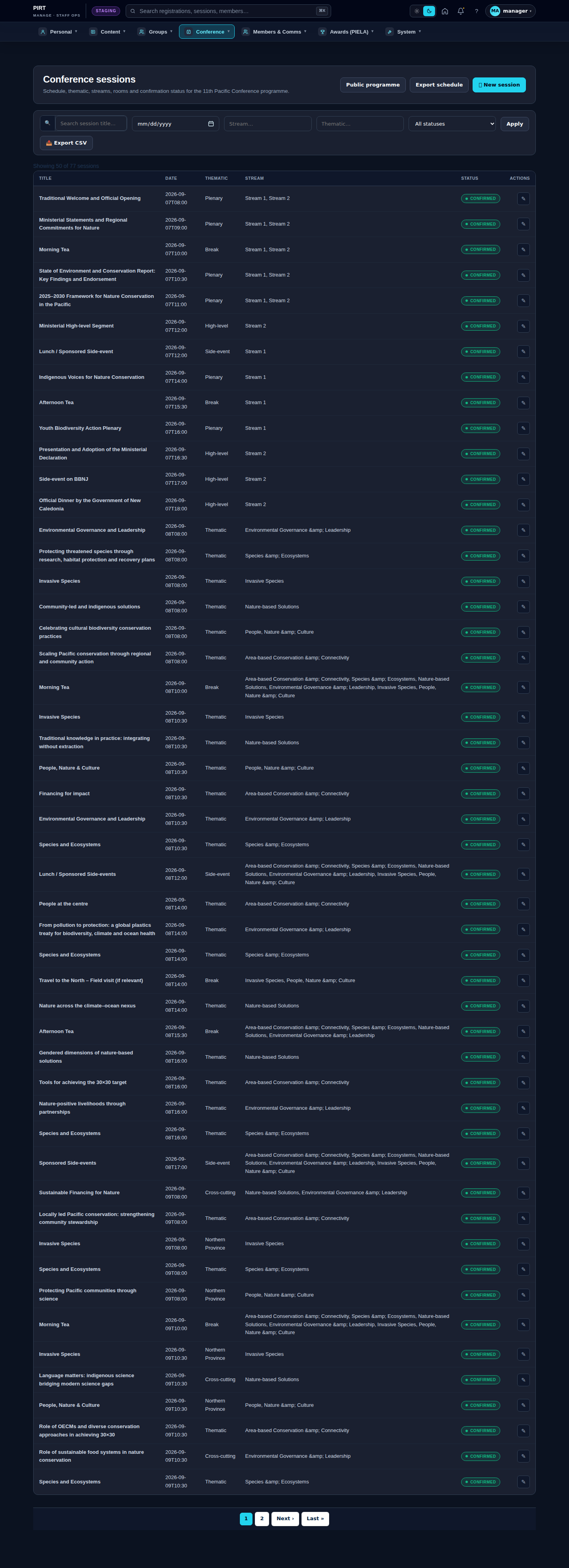
The Sessions screen at https://pirt.demo.weebpal.com/manage/conference/sessions is the flat list of every programme item — plenaries, thematic sessions, side events, breaks and the like. Each session is a session content node carrying its title and abstract, its place in the timetable (day, start and end time), its room(s), its parallel stream(s) and thematic, and a publish status.
Confirmed sessions appear on the public programme at https://pirt.demo.weebpal.com/pacific-nature-conference/programme and on each session's own detail page. As with all editorial content, the abstract and titles live on these nodes and are edited here — the programme template only arranges them.
This flat list is the companion to the visual Programme builder at https://pirt.demo.weebpal.com/manage/conference/programme (covered in the programme chapter). They edit the same session records: a session you create here appears in the drag-and-drop builder grid, and dragging a session in the builder updates the same day/time/room you set here. Use the list to add and edit sessions in detail; use the builder to arrange the week visually.
Both Editors and Managers can manage sessions (Administrators too). The screen is reached from the top navigation under Conference → Sessions.
Standard workflow
A. Find a session
- Open
https://pirt.demo.weebpal.com/manage/conference/sessions. - The list shows each session with its title, schedule, room/stream and status, with edit actions. Use the filters and Find on page to locate a session.
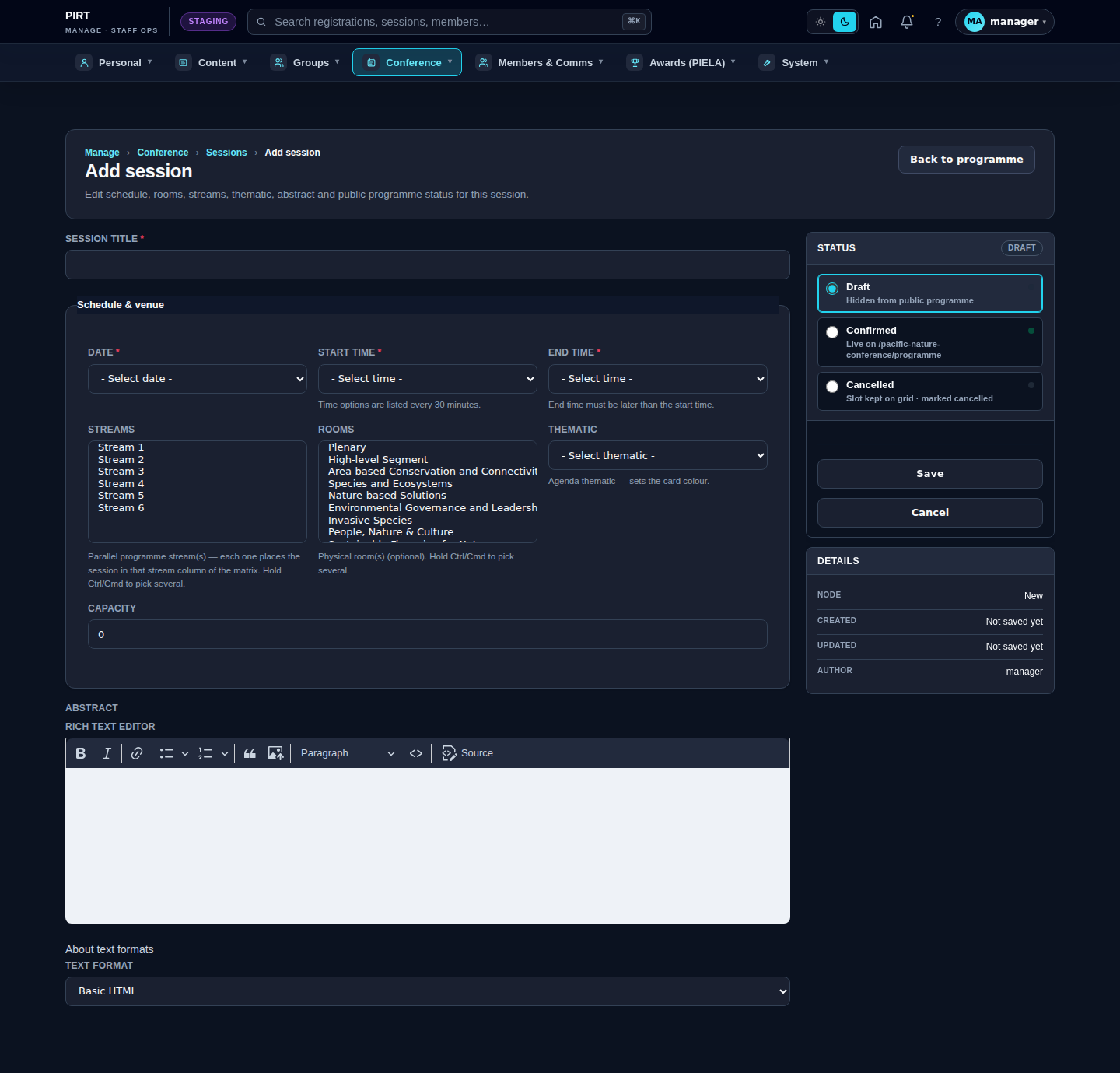
B. Add a session
- Click Add session, opening the form at
https://pirt.demo.weebpal.com/manage/conference/sessions/add. - Enter the Session title.
- In Schedule & venue, choose the Date (one of the five conference days, Mon 7 – Fri 11 Sep 2026), the Start time and End time (30-minute slots; end must be after start).
- Pick the parallel Streams — each stream you select places the session in that stream's column of the programme matrix (hold Ctrl/Cmd to choose several). Optionally choose physical Rooms, a Thematic (which sets the card colour) and a Capacity.
- Write the Abstract in the rich-text editor.
- On the right, set the Status: Draft (hidden from the public programme), Confirmed (live on the public programme), or Cancelled (the slot is kept on the grid but marked cancelled).
- Click Save. You return to the sessions list.
C. Edit a session
- Open the session from the list (or from the programme builder), changing any field.
- To take a session off the public programme, set its Status back to Draft; to mark it cancelled while keeping the slot visible, choose Cancelled.
- Click Save.
D. Cancel or delete a session
- Prefer Cancelled over delete. Setting the status to Cancelled keeps the slot on the grid and flags it to delegates, which is usually what you want for a dropped session.
- Deleting a session removes it from both the list and the builder; do this only for items created in error.
How status controls publishing
A session does not use a separate publish tick — the Status sidebar drives it. Saving with Confirmed publishes the session to the public programme; saving with Draft or Cancelled keeps it off the public programme (a Cancelled session still shows on the grid as cancelled). This means a manager's save is visible immediately in the manage list while the public output stays hidden until the session is confirmed.
Fields
| Field | What it holds |
|---|---|
Session title (title) |
The session name shown on the grid and detail page. Required. |
body (Abstract) |
Rich-text abstract / description. |
field_session_start (Date + Start time) |
The day and start time. Required; chosen from the conference days and 30-minute slots. |
field_session_end (End time) |
The end time; must be later than the start. |
field_session_stream |
Parallel programme stream(s) from the conference_stream vocabulary — each places the session in that matrix column. Multiple allowed. |
field_session_rooms |
Physical room(s) from the conference_room vocabulary. Optional; multiple allowed. |
field_session_track (Thematic) |
The agenda thematic, which sets the card colour. |
field_session_capacity |
Seats for the session. Optional. |
field_session_status |
Publish status: draft (hidden), confirmed (public), or cancelled (slot kept, marked cancelled). Drives the publish state. |
Tips
- Status, not a publish tick. Set Confirmed to go live on the public programme; Draft keeps it internal; Cancelled shows the slot as cancelled.
- List and builder are one. Edits here flow into the drag-and-drop builder and vice versa — they are the same session records, so you never duplicate work.
- Streams place the card. Each selected stream adds the session to that column of the matrix; pick several for a cross-stream item.
- Thematic sets the colour. Choose the thematic so the card is colour-coded consistently on the grid.
- Times come in 30-minute slots spanning the conference day; the end must be after the start, and the form enforces it.
- Cancel rather than delete a dropped session so delegates still see the slot marked cancelled; reserve delete for mistakes.
Registrations
How registrations are stored (technical note)
A registration is not a Drupal node. It is a custom pirt_registration ContentEntity that wraps a dedicated database table created at install time. This means:
- The list at
https://pirt.demo.weebpal.com/manage/conference/registrationsshows table rows, not Views over nodes. - You cannot use node-level operations like "Translate" or "Revisions" on a registration.
- Edits go through a custom form (and an
https://pirt.demo.weebpal.com/admin/pirt/registrationsadmin route owned bypirt_registration). - Each registration carries a unique
referencelikePIRT-26-A7K3F— quote this when handling support questions.
Reviewing one registration
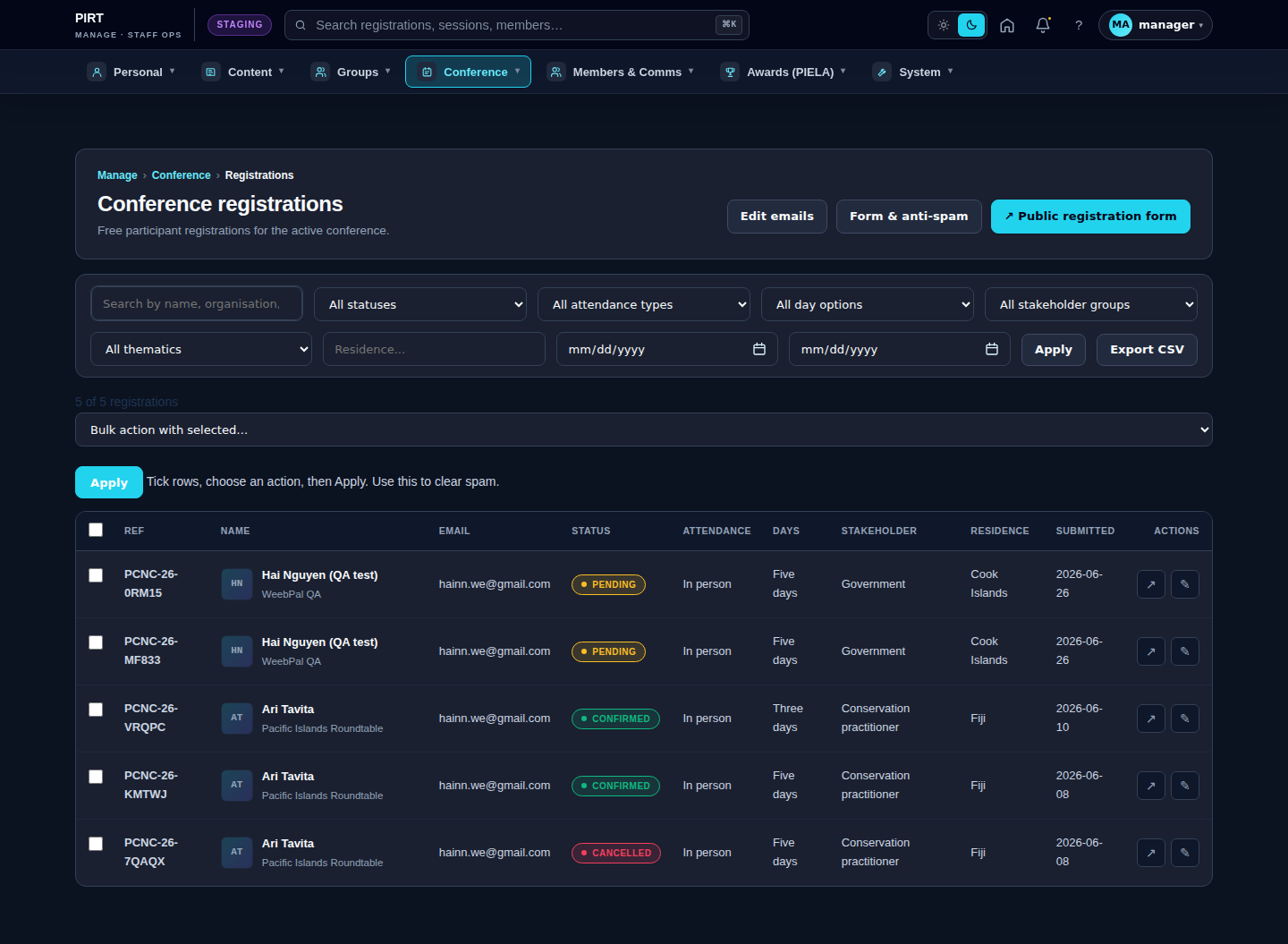
- Open
https://pirt.demo.weebpal.com/manage/conference/registrations→ filter Status = pending (or another state). - Click a row to open the detail: personal info, attendance type, days, dietary, accessibility.
- Decide:
- Approve / confirm → row moves to
confirmed; a confirmation email is sent. Registration is free — there is no payment step. - Cancel → state changes to
cancelled; a cancellation email is sent. - Reactivate a cancelled registration → it returns to
confirmed.
- Approve / confirm → row moves to
- Bulk actions: tick multiple rows → confirm or cancel in one go.
The registration table — key columns
| Column | Type | What it means |
|---|---|---|
reference |
varchar(32), UNIQUE | The visible code, e.g. PIRT-26-A7K3F. |
category |
varchar(32) | standard / pacific / student / side / virtual (5 categories priced in XPF). |
amount_cents |
int | Total in the smallest currency unit. |
currency |
varchar(3) | ISO-4217 (default USD). |
first_name, last_name |
varchar(128) | Required. |
email |
varchar(255) | Required. |
country |
string | Country of residence. |
dietary |
string | Dietary requirements. |
accessibility |
string | Accessibility / assistance needs. |
status |
string | pending / confirmed / cancelled. |
Export
- Click Export CSV at the top right to download all rows (or just the current filter).
- The CSV columns: Reference · Name · Email · Organisation · Country · Attendance · Days · Dietary · Accessibility · Status · Registered at.
Translation (French)
Registration records are language-neutral — one row per registrant. What can be in French is the registration form (labels, helper copy, validation messages) and the confirmation / cancellation emails. These belong to the conference French scope and are edited with the conference content and the Registration emails & settings section above.
Registration emails & settings
What this manages
This chapter covers two Manager-only screens that control how the conference talks to delegates around registration:
- Registration emails —
https://pirt.demo.weebpal.com/manage/conference/registrations/emails— the editable prose of the transactional emails sent during the registration lifecycle, in English and French. - Registration form & anti-spam —
https://pirt.demo.weebpal.com/manage/conference/registrations/settings— the public registration form's spam protection, selection rules and on-page copy.
The guiding principle is that content lives in entities, not in code: the words of every confirmation, approval and cancellation email — and the disclaimers and labels on the registration form — are stored as editable configuration here, not hard-coded in templates. A Manager can reword them at any time without a developer. Both screens require the Manager role; Editors are not given the email or settings screens (Administrators have access).
What is not on these two screens: whether registration is open or closed is set on the conference record (the Registration state in Conference settings), and seat caps are handled outside the email/settings forms. The two screens here govern the emails and the form behaviour and copy — not the open/closed switch or seat caps.
Registration emails
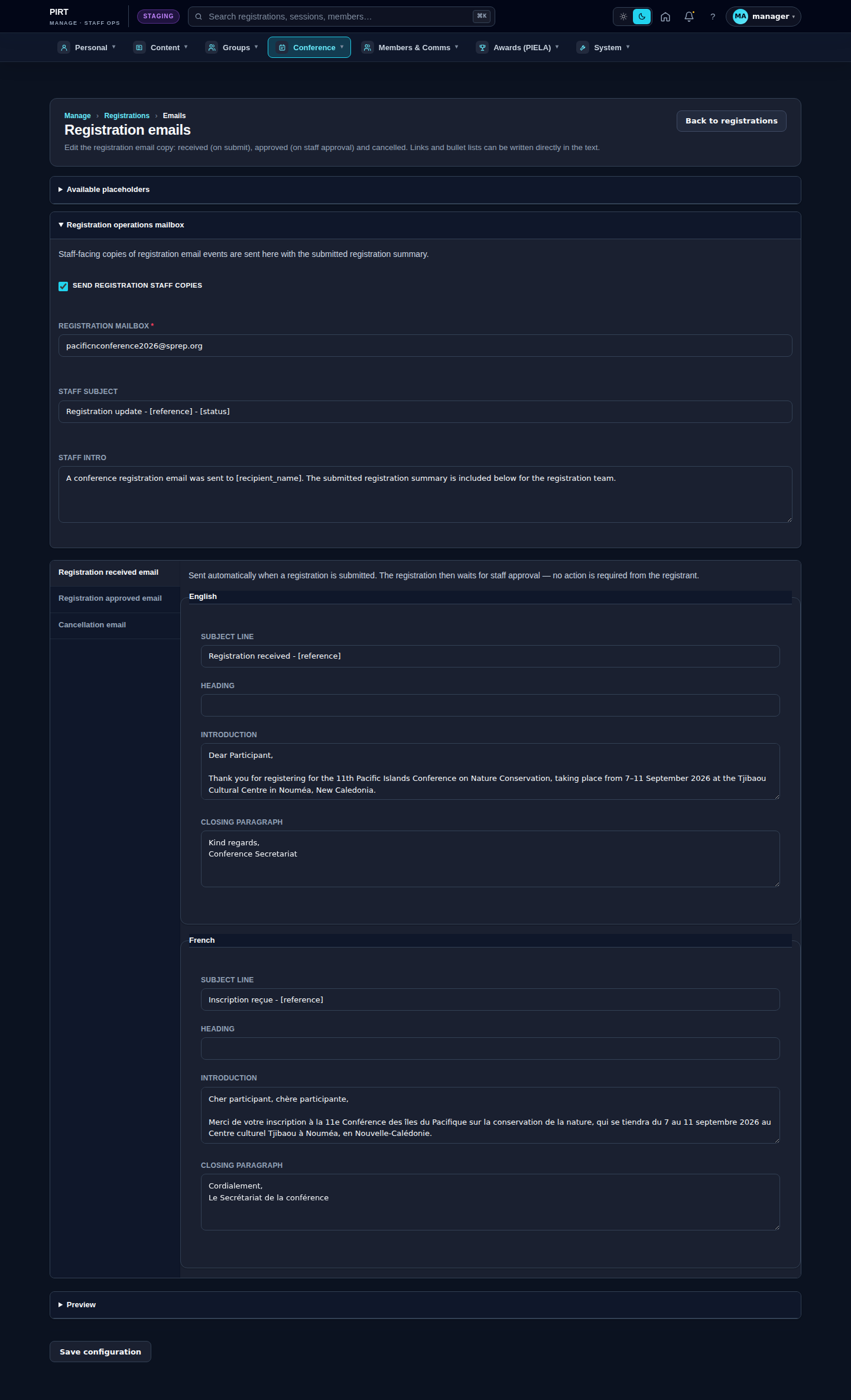
The registration system sends three transactional emails. On each, the reference line and the structured answer summary are generated automatically from the registration data; only the editable prose below is yours to change. Each template carries a Subject line, Heading, Introduction and Closing paragraph, in both English and French.
| Template | When it is sent |
|---|---|
| Registration received email | Automatically when a registration is submitted (the double-opt-in / acknowledgement). The registration then waits for staff approval — no action is required from the registrant. |
| Registration approved email | When staff approve a registration (set its status to Approved). |
| Cancellation email | When a registration is cancelled or declined by staff. |
Editing an email
- Open
https://pirt.demo.weebpal.com/manage/conference/registrations/emails. - Expand Available placeholders to see the tokens you can drop into any field (listed below).
- Pick a template from the vertical tabs (Registration received / Registration approved / Cancellation). Each shows an English fieldset and a French fieldset.
- Edit the Subject line, Heading, Introduction and Closing paragraph in each language. You can write links and bullet lists directly in the text (see below).
- Open Preview to see each template rendered with sample data. (Save first, then reopen the preview to refresh it.)
- Click Save configuration.
Placeholders and formatting
Use these placeholders in any field; they are replaced when the email is sent:
[reference]— the registration reference (e.g.PIRT-26-00042).[recipient_name]— the delegate's full name.[badge_name]— the name printed on the badge.[cancellation_date]— the cancellation date (cancellation email).[conference_year]— the conference year.
For formatting, add a link with [text](https://example.org) or an internal one with [text](/internal/path), and start a line with - to make a bullet list.
Registration operations mailbox
The Registration operations mailbox section at the top sends staff-facing copies of registration email events, with the submitted registration summary, to the registration team. Tick Send registration staff copies, set the Registration mailbox address, and adjust the Staff subject and Staff intro (these accept the same placeholders). This is how the registrations inbox stays informed of every received, approved and cancelled registration.
Registration form & anti-spam
The settings screen at https://pirt.demo.weebpal.com/manage/conference/registrations/settings configures the public registration form's spam guard, its selection rules and its on-page copy.
Editing the settings
- Open
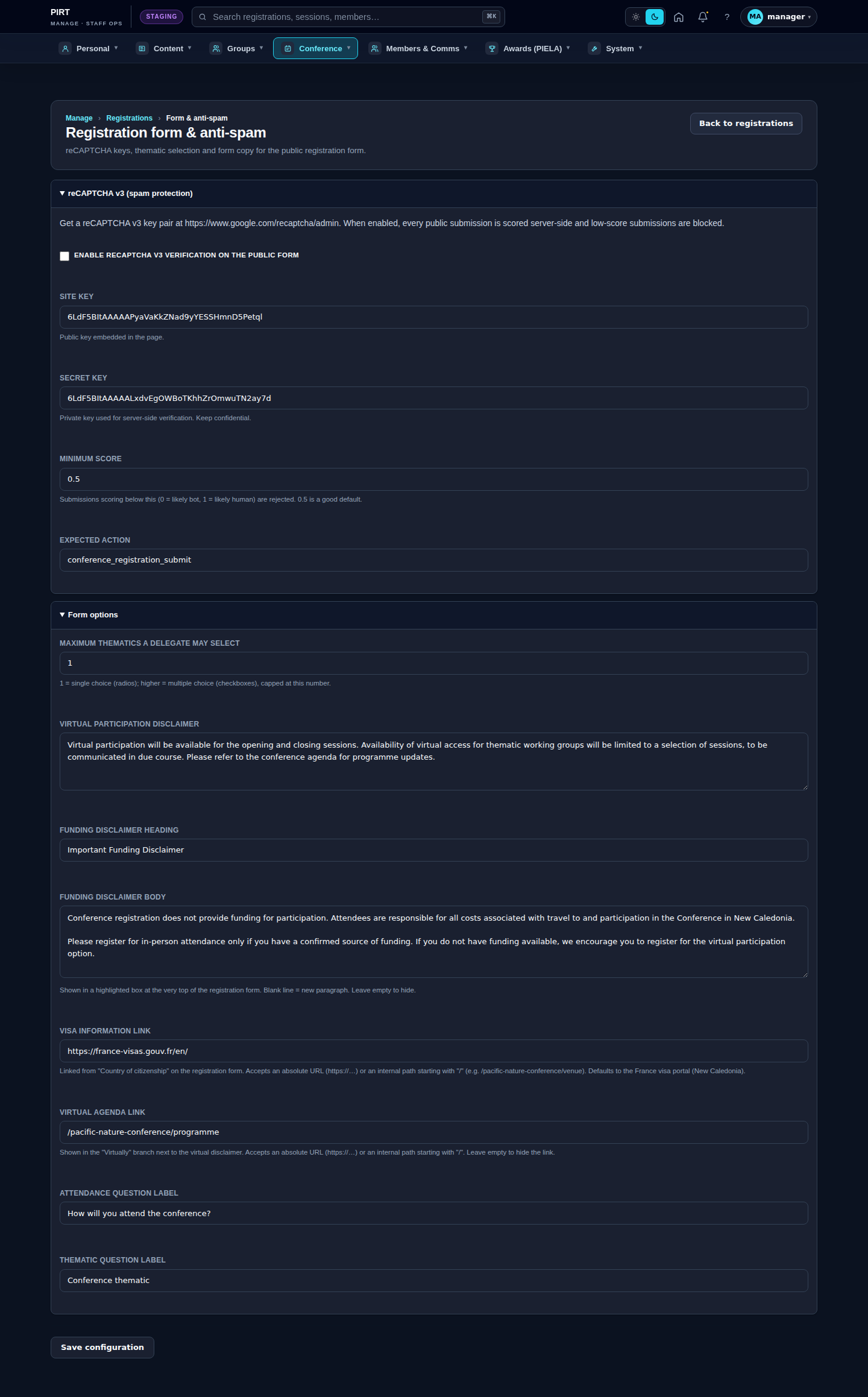
https://pirt.demo.weebpal.com/manage/conference/registrations/settings. - Under reCAPTCHA v3 (spam protection), optionally Enable verification and paste the Site key and Secret key from Google's reCAPTCHA admin. Set the Minimum score (0 = likely bot, 1 = likely human; 0.5 is a good default) below which submissions are rejected.
- Under Form options, set the rest of the form's behaviour and copy (see the fields table).
- Click Save configuration.
Form options fields
| Field | What it controls |
|---|---|
| Maximum thematics a delegate may select | 1 = single choice (radios); higher = multiple choice (checkboxes), capped at this number. |
| Virtual participation disclaimer | Shown to delegates choosing virtual attendance. |
| Funding disclaimer heading / body | A highlighted notice at the very top of the form (blank line = new paragraph). Leave the body empty to hide it. |
| Visa information link | Linked from "Country of citizenship". Use an absolute URL; for internal links, use the demo-domain form (e.g. https://pirt.demo.weebpal.com/pacific-nature-conference/venue). Defaults to the France visa portal. |
| Virtual agenda link | Shown in the "Virtually" branch beside the disclaimer. Absolute URL or internal path; leave empty to hide. |
| Attendance question label | The wording of the in-person / virtual attendance question. |
| Thematic question label | The wording of the thematic-selection question. |
Tips
- Edit the prose here, never in templates. Every word of the received, approved and cancellation emails is editable on the emails screen — there is no need to touch code to reword them.
- Keep French in step with English. Each template has both languages; update the French fieldset whenever you change the English so bilingual delegates get a consistent message.
- Use placeholders, not typed-in values. Write
[reference]and[recipient_name]rather than a fixed name or code — they are filled per delegate at send time. - Preview after saving. The preview renders the last saved content, so save first, then reopen Preview to check it.
- Set the operations mailbox so the registration team receives a copy of every email event with the submitted summary.
- 0.5 is a sensible reCAPTCHA score. Raise it if spam gets through, lower it if genuine delegates are blocked — and keep the secret key confidential.
- Open/closed and seat caps are elsewhere. To open or close registration, use the Registration state in Conference settings; seat caps do not live on these two screens.