Managing the Homepage
https://pirt.demo.weebpal.com/manage/content/homepage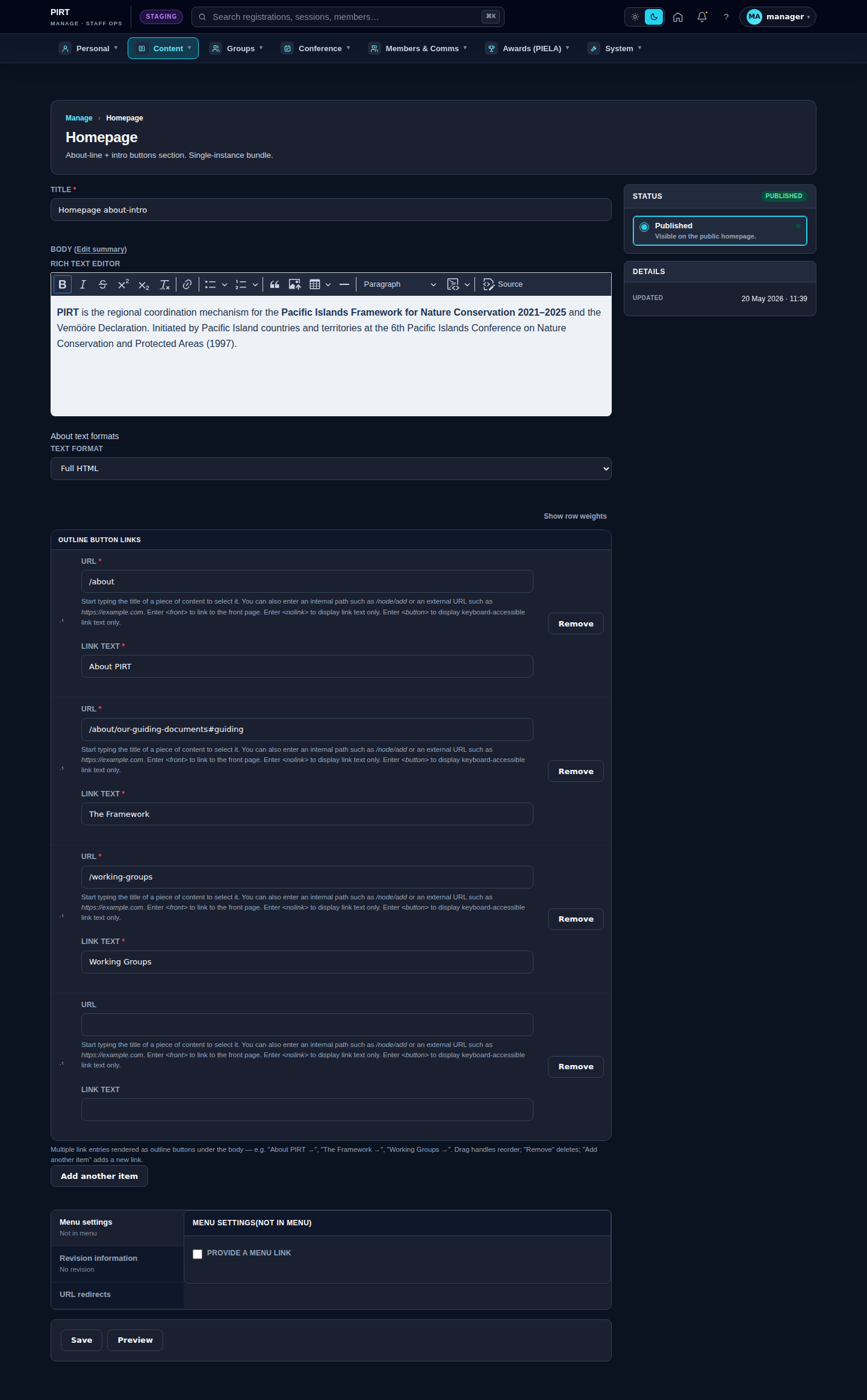
https://pirt.demo.weebpal.com/manage/content/homepage.Homepage anatomy
The public homepage stitches together blocks from several sources:
| Section | Source | Where to edit |
|---|---|---|
| Hero band + countdown | The active conference_edition node |
https://pirt.demo.weebpal.com/manage/conference/settings (chapter 11) |
| Intro band | A dedicated Homepage block | Here, Intro tab |
| Featured news | Picks 3 most-recent published News articles | News list (https://pirt.demo.weebpal.com/manage/content/news) — flag-pin to override |
| Upcoming events | Picks 3 events with future start dates | Events list (https://pirt.demo.weebpal.com/manage/content/events) |
| Partner strip | The Site section bundle "Partner strip" | https://pirt.demo.weebpal.com/manage/content/site-sections (chapter 11) |
| Footer CTAs | Footer Site-section blocks | https://pirt.demo.weebpal.com/manage/content/site-sections |
The Homepage editor at https://pirt.demo.weebpal.com/manage/content/homepage lets you customise the bits that are specific to the homepage without bouncing between five different lists.
Editing the homepage
- Open
https://pirt.demo.weebpal.com/manage/content/homepage. - Intro band: write the 1-paragraph site intro that sits below the hero.
- Featured news override (optional): pin up to 3 specific news articles to the featured row, in any order. If you don't pin anything, the system shows the latest 3.
- Section visibility: tick/untick which sections are shown (e.g. hide "Partner strip" temporarily if logos are mid-redesign).
- Save. The homepage updates within ~1 minute.
Tips
- Hero + countdown are driven by the conference — don't fight it from the Homepage editor. Switch the active conference edition to control the hero.
- Pin sparingly: if you over-pin, the homepage stops feeling fresh. Three pins maximum; release a pin after a week.
- Always preview: this page is the front door of the site. Preview before saving and double-check on mobile (the layout reflows).
Where things actually live
A common confusion: the homepage editor doesn't store the news articles themselves — it stores which articles to feature. To edit a news article's text or image, open it from
https://pirt.demo.weebpal.com/manage/content/news. To swap which 3 stories show on the homepage, you can do it here without leaving.
Configuring blocks on the homepage (inline edit)
Most homepage sections are rendered as blocks. Managers and Administrators can edit a block in-place from the public homepage without ever opening https://pirt.demo.weebpal.com/manage/content/homepage — handy for quick copy fixes.
How inline block edit works
- Sign in as Manager or Administrator.
- Visit the public homepage
https://pirt.demo.weebpal.com/(or any content page that renders the block). - Hover the section you want to change — a small Edit ✎ pencil appears at the top-right of the block.
- Click the pencil. A side-panel opens with the block's editable fields (title, body, CTA label, CTA URL, image, visibility toggle).
- Edit and click Save. The cache for that section is invalidated and the live page updates within ~30 seconds.
Blocks you can edit inline
| Section | Block plugin | Editable fields | Permission |
|---|---|---|---|
| Intro band | pirt_homepage_intro |
Heading, lede paragraph, CTA label + URL, background image. | Manager+ |
| Featured news header | pirt_section_heading:featured_news |
Heading text, "See all" link. | Manager+ |
| Upcoming events header | pirt_section_heading:upcoming_events |
Heading text, "See all" link. | Manager+ |
| Partner strip | pirt_partner_strip |
Logo list (drag to reorder, add/remove via Media library). | Manager+ |
| Footer CTAs | pirt_footer_ctas |
Up to 3 CTA cards (icon, title, body, link). | Manager+ |
Same pattern for other content pages
The inline-edit pencil pattern fires on any page that renders a pirt_* block — not just the homepage. You'll see it on:
- News list (
https://pirt.demo.weebpal.com/news) — section heading, footer CTA. - Events list (
https://pirt.demo.weebpal.com/upcoming/events) — section heading, calendar promo block. - Funding list (
https://pirt.demo.weebpal.com/upcoming/funding) — "How to apply" sidebar block. - About / Our work static pages — site-section blocks (chapter 11).
- Working-group landing pages — group-specific intro and CTA blocks.
If a section doesn't show a pencil, it's not a block you can edit inline — either it's a generated list (e.g. the 3 most-recent news cards) or it's a node that lives in a content list (open https://pirt.demo.weebpal.com/manage/content/<type> instead).
Watch-outs
- Inline edit affects the live site immediately — there is no draft state on blocks. Test copy in a separate doc before pasting.
- Revisions: every save creates a block revision. To roll back, open
https://pirt.demo.weebpal.com/admin/structure/block-content, find the block, switch to the Revisions tab. - Translations: edit the FR version by switching the language pill on the public page first (
?lang=fr), then click the pencil. The FR translation form opens for the same block. - Hiding a section (vs. editing it): use the Section visibility toggles on
https://pirt.demo.weebpal.com/manage/content/homepage— don't unpublish the underlying block, or it disappears site-wide. - Editors (without Manager rights) don't see the pencil — block edits are gated on
administer block content+pirt_*plugin scope.