Managing static Pages
Roles: Editor, ManagerURL:
https://pirt.demo.weebpal.com/manage/content/pages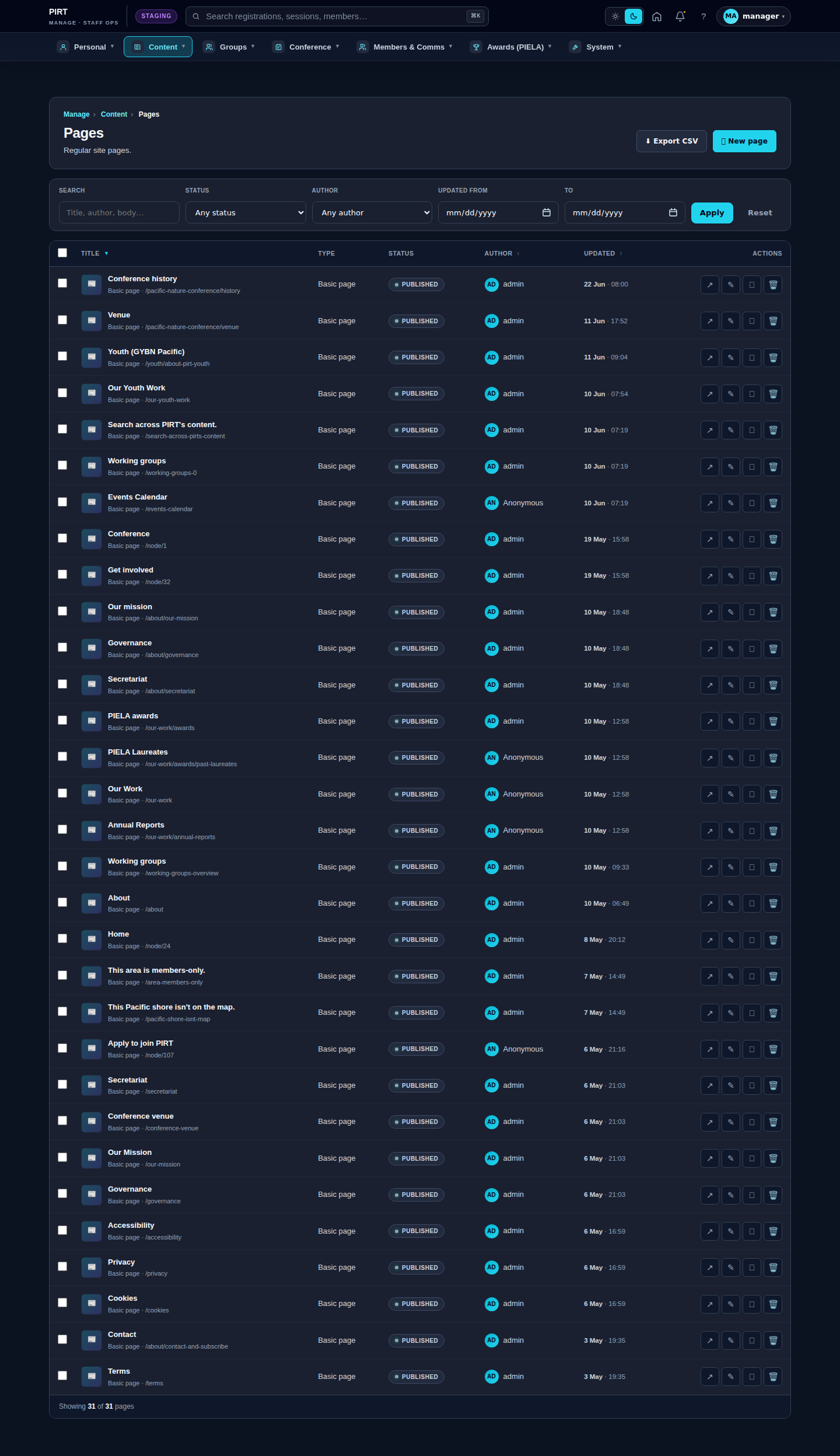
https://pirt.demo.weebpal.com/manage/content/pages.Standard workflow
A. Create
- Open
https://pirt.demo.weebpal.com/manage/content/pagesinside thehttps://pirt.demo.weebpal.com/manageworkspace. - Click the + Add new button at the top right.
- Fill in the fields (see the table below). Required fields are marked
*. - Click Save as Draft to keep it private, or Save and Publish if you have publish rights (Manager+).
- The system auto-creates a URL alias (Pathauto) and pushes the entry into the search index.
B. Edit
- From the
https://pirt.demo.weebpal.com/manage/content/pageslist, use the filters (title, status, category) to find the record. - Click the title — or the Edit action under the Operations column.
- Update the content and click Save. Every save creates a new revision that you can review or roll back from the Revisions tab.
C. Publish / Unpublish
- Editor can only move content to In review (waiting for approval).
- Manager moves content to Published or Archived to remove it from the public site.
- Every status change is written to the activity log.
D. Delete
- Click Delete under the Operations column (Manager+ only).
- Drupal keeps the revision history; hard-delete requires an Administrator.
Fields
| Field | Type | Required? | Editor's note |
|---|---|---|---|
uid (author) |
Reference (user) | Yes | |
status (published flag) |
Boolean | Yes | |
moderation_state |
List | Yes | |
title |
Text (255) | Yes | Page title. |
body |
Long text + paragraphs | No | Main body content. |
field_summary |
Long text (300) | No | |
field_seo_meta |
Metatag | No | |
field_layout_blocks |
Paragraph reference | No | Layout assembled from Paragraphs (hero, split, pillar card, timeline, …). |
Layout Builder structure
Each Page has a field_layout_blocks field that holds a list of Paragraph blocks. The common ones:
| Paragraph | What it does | Main fields |
|---|---|---|
rich_block |
Long text + image | title, body, image |
split_media_text |
Alternating text + image | image (left/right), heading, body |
pillar_card |
3-column "pillar" card | icon, title, description, link |
timeline_strip |
Horizontal timeline | year, label, description (multi) |
chip_list |
Inline chip / tag list | label (multi) |
fact_box |
Highlighted metric box | metric, label |
pillar_card_grid |
Grid of pillar cards | (contains pillar_card) |
context_card |
Card with context details | title, body, link |
Add a Paragraph
- In the edit form, scroll to Layout blocks.
- Click the Add dropdown → choose a Paragraph type.
- Fill in the fields; click Collapse to fold it.
- Drag-and-drop to reorder.
- Save the page.
Special case: the About page
https://pirt.demo.weebpal.com/about uses a standard layout with a TOC (Table of Contents) auto-generated from H2 headings. When editing:
- Every <h2> in the body becomes a TOC entry on the left.
- Do not remove field_facts, field_founded_year, field_member_count_override, field_secretariat_location — the right-side aside uses them.
Examples of Pages on the public site
Editor vs Manager view
The same screen as each role sees it. Click a row to expand.
Editor
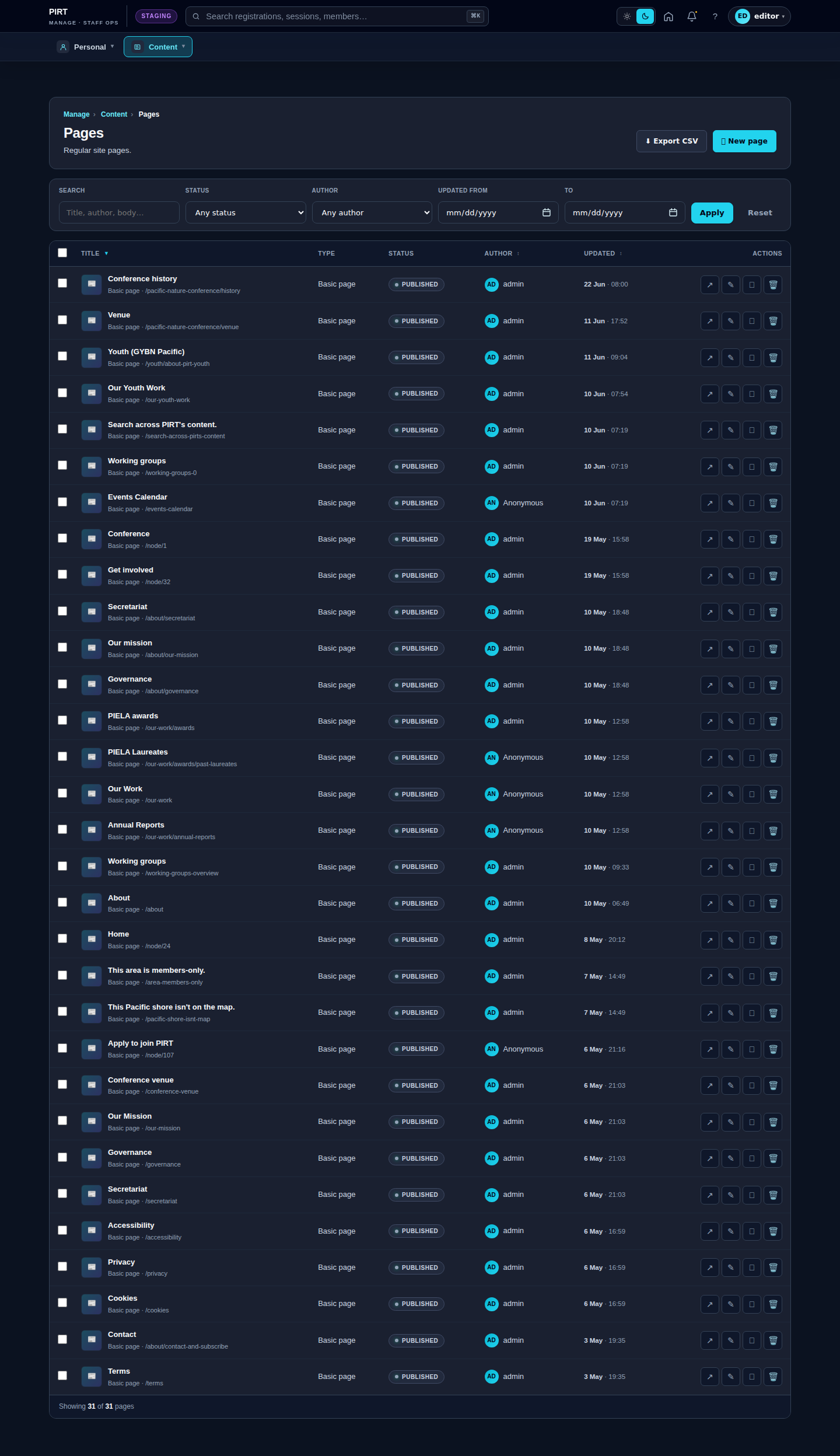
Manager